What It Means When a Summary Element Is Missing an Accessible Name — And Why It Matters for WCAG Level A Conformance
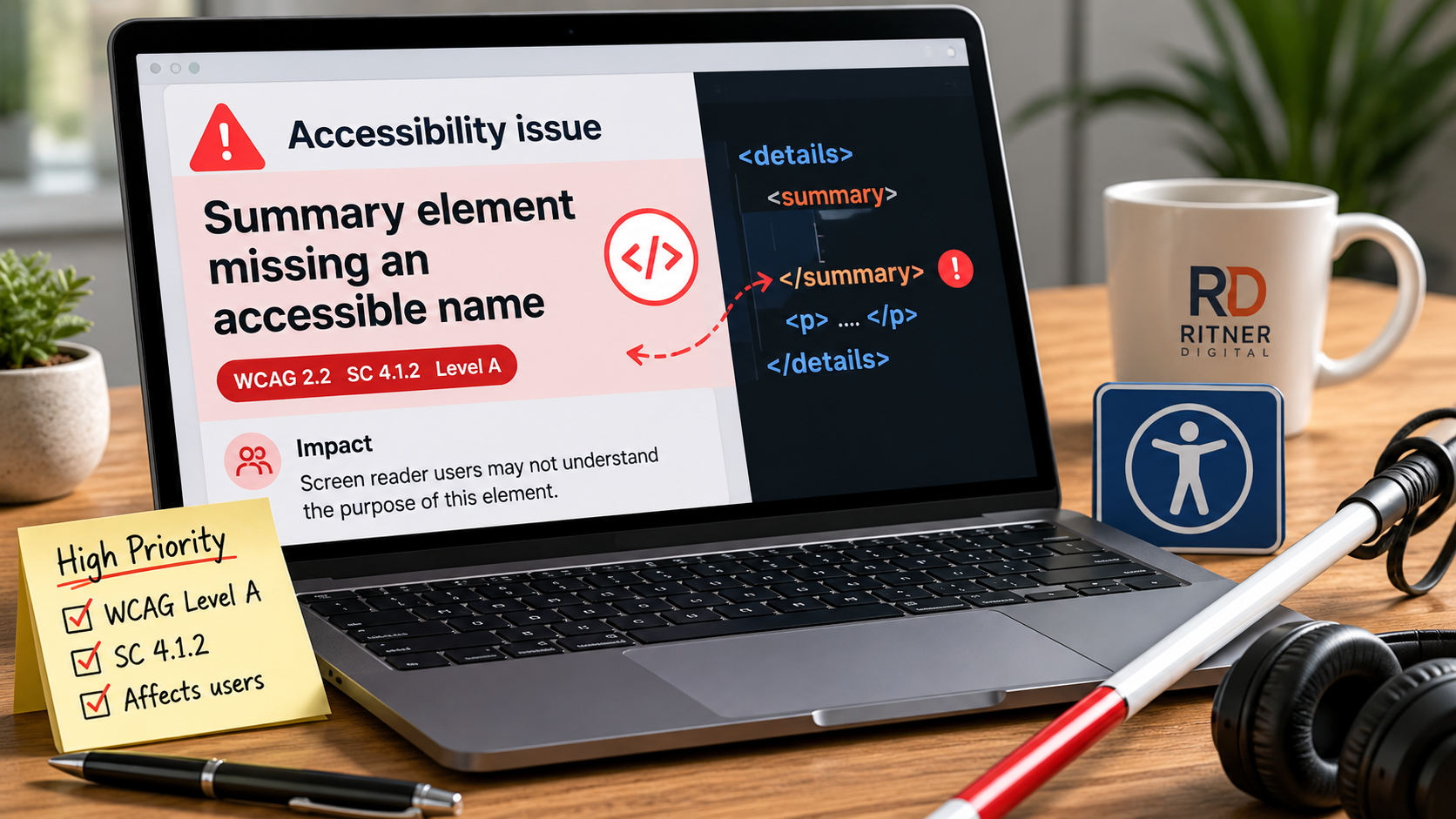
If you've run an accessibility audit on your website and received a flag for a "summary element missing an accessible name," you're looking at a WCAG Level A failure. That puts it in the highest-priority category — the criteria that have the most direct impact on whether users with disabilities can actually access your content at all.
This post explains what a summary element is, what an accessible name means in this context, why the absence of one creates a real barrier for real users, and what it takes to fix it.
What a Summary Element Is
The <summary> element is an HTML component used in conjunction with the <details> element to create a native browser-based disclosure widget — a piece of content that is collapsed by default and expands when a user interacts with it. You've seen these everywhere: FAQ sections where each question can be clicked to reveal its answer, filter panels in e-commerce that expand to show options, legal disclaimers that are hidden until a user chooses to view them, and settings menus that expand to reveal sub-options.
The <details> element contains the content that shows or hides. The <summary> element is the visible, interactive label — the thing the user clicks or taps to trigger the expand-and-collapse behavior. By default, browsers render the <summary>element as a focusable, interactive control, which means it is natively part of the keyboard navigation flow and is announced by screen readers as an interactive element.
This is actually one of the more useful native HTML patterns from an accessibility standpoint: when implemented correctly, the <details> and <summary> combination provides interactive disclosure behavior without requiring any JavaScript, and it comes with built-in keyboard support in most modern browsers. The problem arises when the <summary>element doesn't have an accessible name — the label that assistive technologies use to identify and announce the control to users who can't see the page visually.
What "Accessible Name" Means
An accessible name is the text string that a screen reader or other assistive technology uses to identify an interactive element. When a screen reader user navigates to a button, a link, a form field, or an interactive control like a <summary>element, the assistive technology reads out the element's role and its accessible name. A button might be announced as "button: Submit form." A link might be announced as "link: Read our privacy policy."
The accessible name is how a user who cannot see the visual label of an element understands what that element does. Without an accessible name, the assistive technology either reads nothing, reads something meaningless like "button" with no accompanying label, or — depending on the implementation — reads raw code or placeholder text that provides no useful information.
There are several ways an accessible name can be calculated for an element. For a <summary> element, the most straightforward is text content: if the <summary> element contains visible text, that text typically becomes the accessible name. But failures occur when the <summary> element contains only an icon with no text label, when it contains an image without alternative text, when its text content is empty, or when it's been constructed in a way that strips out or overrides the natural accessible name calculation.
The Specific WCAG Criterion This Violates
A summary element missing an accessible name is a failure of WCAG Success Criterion 4.1.2: Name, Role, Value. This is a Level A criterion — the most fundamental tier of WCAG conformance, covering the issues most likely to make a website completely unusable for users with disabilities.
SC 4.1.2 requires that for all user interface components — including form elements, links, and components generated by scripts — the name and role can be programmatically determined. "Programmatically determined" means that the information is available in the code in a way that assistive technologies can read and communicate to users. It is not enough for an element to look labeled on screen if that label is not accessible to the code that assistive technologies depend on.
The <summary> element is a user interface component. It is interactive — users click it, tap it, and activate it with the keyboard. It therefore falls squarely within the scope of SC 4.1.2. When it has no accessible name, the "name" part of "name, role, value" is missing, and the criterion is failed.
This is not a borderline or interpretive failure. It is direct and unambiguous. A <summary> element with no accessible name is a Level A nonconformance.
Who Is Affected and How
Understanding who this affects — and how specifically — is important for anyone trying to communicate the real-world impact of this issue to stakeholders who aren't familiar with assistive technology.
Screen reader users are the most directly affected. When a screen reader user navigates through a page using their tab key or their screen reader's interactive element shortcuts, they land on the <summary> element. The screen reader announces the element's role — something like "disclosure triangle" or "button" depending on the browser and screen reader combination — and then reads the accessible name. If there is no accessible name, the user either hears nothing, or hears a generic announcement with no context. They have no way of knowing what the control does, what content it will reveal, or whether activating it is relevant to their goals on the page.
A screen reader user encountering an unlabeled <summary> element in an FAQ section, for example, hears a series of interactive controls with no identifying information. They cannot determine which question corresponds to which control without activating each one in sequence and waiting to hear what content appears. In a long FAQ with many <details>blocks, this is not a minor inconvenience — it is a complete barrier to efficient navigation.
Keyboard-only users who are not using a screen reader may also be affected, particularly if the missing accessible name is the result of a broader implementation problem that affects the visual label as well as the programmatic one. In cases where the control has no visible label whatsoever, keyboard-only users face the same navigation barrier.
Voice control users — people who use software like Dragon NaturallySpeaking to navigate the web by speaking commands — depend on accessible names to target interactive elements. If a user wants to click a specific <summary>element, they typically speak the name of the element. An element with no accessible name cannot be reliably targeted by voice, forcing the user to use less efficient navigation methods or abandon the interaction entirely.
Common Causes of This Failure
In practice, a <summary> element ends up without an accessible name in a handful of predictable ways.
Icon-only implementations are the most common cause. A developer implements a <details>/<summary> widget where the summary contains only an SVG icon — a chevron, a plus sign, an arrow — with no accompanying text. The icon conveys the expand-and-collapse affordance visually, but if the SVG has no title, no aria-label, and no visually hidden text providing a label, the accessible name calculation returns nothing.
Empty or near-empty summary elements occur when a <summary> element is present in the code but its text content has been removed, moved to the <details> section, or was never added. This sometimes happens during template-based development where the structure is correct but the content population step was missed.
Images without alternative text inside summary elements create the same problem. If a <summary> contains an <img>element with an empty or missing alt attribute, the image contributes nothing to the accessible name calculation.
CSS-generated content used as labels — where the visible text of a summary element comes from a CSS ::before or ::afterpseudo-element rather than actual text in the HTML — is not exposed to the accessibility tree and therefore does not contribute to the accessible name.
JavaScript-generated summary elements that are constructed dynamically and don't include proper accessible name attributes at the time they're inserted into the DOM can also produce this failure, particularly if the developer assumed the visible content would handle the labeling automatically.
How to Fix It
The fix depends on what caused the failure.
If the summary element contains visible text, and that text is the intended label, the issue is usually a code construction problem that's stripping the text from the accessible name calculation. Reviewing how the element is structured and ensuring the text is directly within the <summary> element — not nested inside a child element in a way that interferes with name calculation — typically resolves it.
If the summary element contains only an icon, the fix is to add an accessible label through one of three methods: adding visually hidden text inside the element using a CSS class that positions the text off-screen without hiding it from assistive technologies; adding an aria-label attribute directly to the <summary> element with a descriptive label; or adding a title attribute, though this is the least reliable method and not recommended as a primary approach.
If the summary element contains an image, ensure the <img> element has a meaningful alt attribute that describes the purpose of the control, not just the appearance of the image.
The label itself — whatever method is used to provide it — should describe what the control does or what content it reveals, not just its visual appearance. "Expand" is marginally better than nothing. "Show shipping and return policy" is meaningfully useful. When in doubt, describe the content that will be revealed.
Why Level A Failures Deserve Priority Attention
WCAG organizes its criteria by the severity of impact on users, and Level A represents the floor — the criteria where failure most directly excludes users with disabilities from accessing content. Level A failures are also the highest legal risk in ADA-related litigation, because they represent the clearest, most documentable evidence that a site is not accessible.
A missing accessible name on a <summary> element is not a cosmetic issue or a best practice suggestion. It is a documented barrier that prevents a specific class of users from understanding and using a specific interactive component on your site. In an FAQ section, that might mean being unable to access answers to questions. In a filter panel, it might mean being unable to use the filtering functionality at all. In a settings menu, it might mean being unable to navigate to options that other users access without friction.
The fix is usually fast. The impact of not fixing it is disproportionate to the effort required.
The Bottom Line
A <summary> element missing an accessible name is a clear, unambiguous WCAG Level A failure under Success Criterion 4.1.2. It creates real navigation barriers for screen reader users, voice control users, and in some cases keyboard-only users. It is caused by a handful of identifiable and fixable implementation patterns — most commonly icon-only implementations without accompanying text labels — and resolves with targeted code changes that don't require a redesign.
If you're seeing this flag in your accessibility audit and want help understanding the full scope of what it means for your site's conformance, or building a remediation plan that addresses it alongside other findings, Ritner Digital can help.
Talk to the Ritner Digital team →
Sources: Web Content Accessibility Guidelines (WCAG) 2.1 and 2.2, W3C; WCAG Success Criterion 4.1.2 — Name, Role, Value; WAI-ARIA Authoring Practices Guide — Disclosure Pattern; HTML Living Standard — The details and summary elements; WebAIM Screen Reader Survey.
Frequently Asked Questions
What is a summary element in HTML?
The <summary> element is an HTML tag used together with the <details> element to create a native expand-and-collapse disclosure widget. The <summary> is the visible, clickable label — the part the user interacts with — while the <details>element contains the content that shows or hides when the control is activated. Common uses include FAQ accordions, expandable filter panels, and collapsible settings menus.
What is an accessible name and why does a summary element need one?
An accessible name is the text label that assistive technologies like screen readers use to identify and announce an interactive element to users who can't see the page visually. When a screen reader user navigates to a <summary> element, it reads out the element's role and its accessible name — for example, "button: Show shipping policy." Without an accessible name, the screen reader either reads nothing useful or announces the element's role with no identifying context, leaving the user with no way to know what the control does.
Which WCAG criterion does a missing accessible name on a summary element violate?
It is a failure of WCAG Success Criterion 4.1.2: Name, Role, Value, which is a Level A criterion — the highest priority tier in WCAG. SC 4.1.2 requires that for all user interface components, the name and role can be programmatically determined. A <summary> element with no accessible name fails the "name" requirement directly and without ambiguity.
Is this a serious accessibility issue or a minor one?
It is a serious issue. Level A is the most fundamental conformance tier — the criteria most likely to completely exclude users with disabilities from accessing content. A screen reader user encountering an unlabeled <summary> element has no reliable way to know what the control does or what content it will reveal. In a long FAQ or a complex filter interface, that's not a minor inconvenience — it can make an entire section of the site functionally unusable.
Who is most affected by this failure?
Screen reader users are most directly affected, since they depend on accessible names to understand and navigate interactive elements. Voice control users — people who navigate by speaking commands like "click show return policy" — are also significantly affected, because they cannot reliably target an element that has no name to speak. Keyboard-only users may also be impacted depending on whether the missing accessible name reflects a broader labeling problem that affects the visual interface as well.
What are the most common reasons a summary element ends up without an accessible name?
The most common cause is an icon-only implementation — where the <summary> element contains only an SVG chevron, arrow, or plus icon with no accompanying text, no aria-label, and no visually hidden label. Other common causes include empty <summary> elements where text content was never added or was accidentally removed, images inside the element with missing or empty alt attributes, and CSS-generated content used as a visual label that doesn't get exposed to the accessibility tree.
How do you fix a summary element that's missing an accessible name?
The fix depends on the cause. If the element contains only an icon, the most reliable solutions are adding an aria-labelattribute directly to the <summary> element with a descriptive label, or adding visually hidden text inside the element using a CSS off-screen technique. If the element contains an image, adding a meaningful alt attribute to the <img> resolves it. In all cases, the label should describe what the control does or what content it reveals — not just its visual appearance.
What should a good accessible name for a summary element say?
It should describe the purpose of the control in plain language — specifically what content will be revealed when the user activates it. "Expand" is marginally better than nothing but still vague. "Show answer" is better. "Show our return and refund policy" is meaningfully useful. If the <summary> is inside a larger component where context is clear, a shorter label may be sufficient — but when in doubt, err toward specificity. The goal is that a screen reader user can decide whether to activate the control without having to activate it first to find out what it does.
Does this failure expose my organization to legal risk?
Yes. Level A failures are the clearest and most documentable evidence of inaccessibility in ADA-related litigation. They represent direct, verifiable barriers to access for users with disabilities — exactly what courts and the DOJ look for when evaluating whether a site meets its obligations under the ADA. A missing accessible name on an interactive element is the type of specific, automatically detectable failure that appears in expert witness reports and demand letters. The fix is typically fast; the legal exposure for leaving it unaddressed is disproportionately high.
How do I find out if my site has this issue?
Automated accessibility scanning tools including Axe, WAVE, Lighthouse, and Siteimprove will flag <summary> elements missing accessible names as Level A violations. Manual testing with a screen reader — VoiceOver on Mac and iOS, NVDA or JAWS on Windows — will also surface the issue quickly: navigate to the element with your tab key and listen to what the screen reader announces. If it reads only a role with no label, the accessible name is missing. Ritner Digital offers professional accessibility audits that identify this and all related issues across your full site with a prioritized remediation roadmap. Get in touch here.