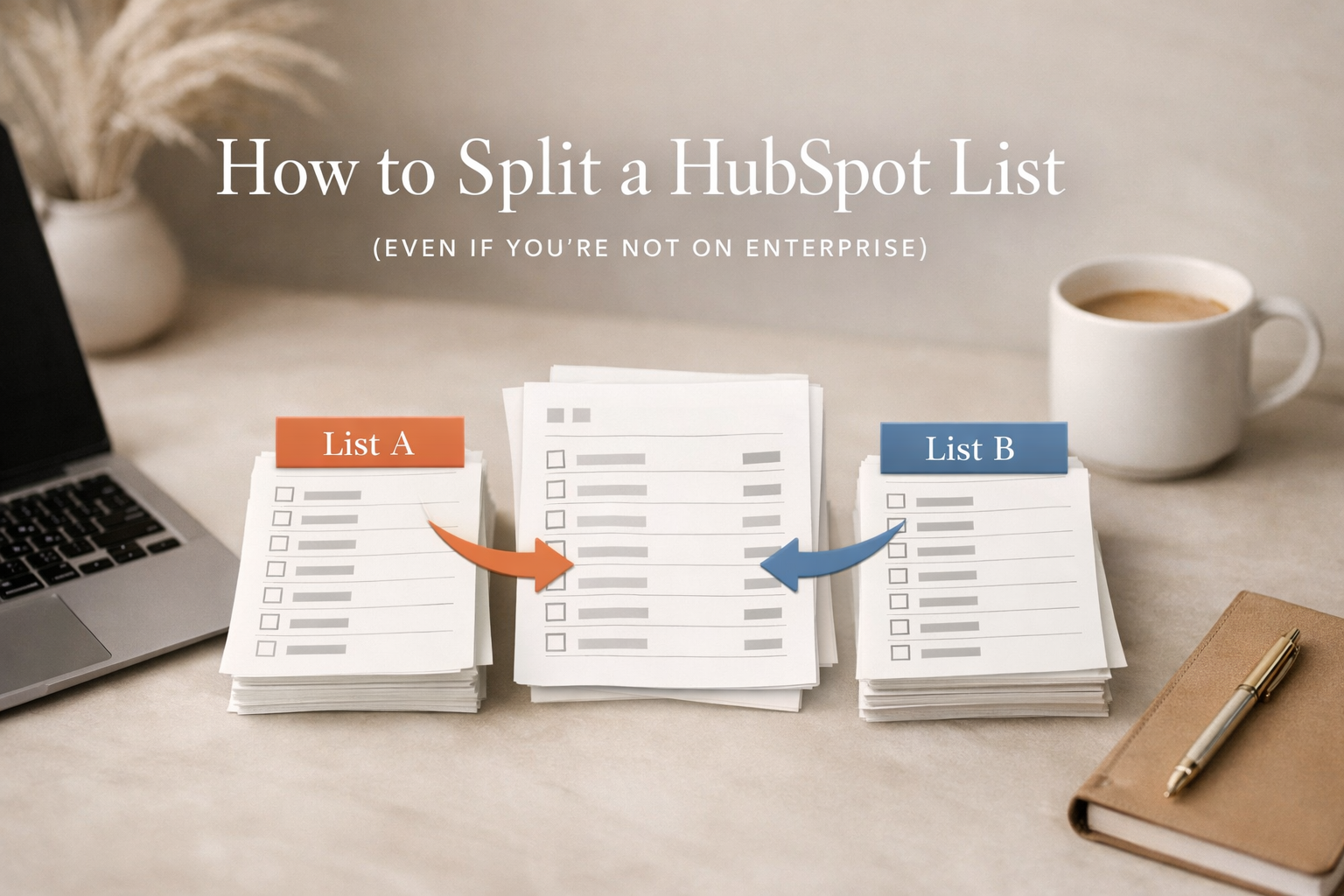
How to Split a HubSpot List (Even If You’re Not on Enterprise)
You’re staring at a HubSpot list.
It’s big.
It’s important.
And you absolutely do not want to send the same email to all of it at once.
Maybe you’re A/B testing.
Maybe you’re pacing a campaign.
Maybe you’re just trying not to cause chaos.
Whatever the reason, you need to split a HubSpot list — and how easy that is depends entirely on your subscription.
Let’s break it down.
The Easy Way (If You’re on HubSpot Enterprise)
If you’re on a HubSpot Marketing Enterprise subscription, this part is blissfully simple.
How it works:
Go to Contacts → Lists
Click the list you want to split
Open the List Segment screen
Click More options
Select Split list
HubSpot automatically divides the list evenly for you.
Example:
Original list: 10,000 contacts
Result:
List A: 5,000 contacts
List B: 5,000 contacts
That’s it. No spreadsheets. No exports. No mild panic.
This is perfect for:
Email A/B testing
Staggered campaign sends
Controlled sales experiments
If this is you, congrats — you can skip ahead and enjoy your coffee ☕
Not on Enterprise? No Problem.
If you’re on Starter or Professional, HubSpot doesn’t give you a native “split list” button.
Annoying? Yes.
Unsolvable? Not even close.
Here’s the most reliable workaround.
Prefer Watching Instead of Clicking Around HubSpot?
Totally fair. This quick video walks through how to split HubSpot lists, step by step.
The Manual (But Works Every Time) Method
Step 1: Export Your List
Go to Contacts → Lists
Open the list you want to split
Click Export
Choose CSV
Download the file
Step 2: Open It in Excel or Google Sheets
Once the file is open:
Leave the list as-is, or sort it if needed
Count how many total contacts you have
Example:
Total contacts: 12,000
Goal: Split into 3 equal lists
That means each list should have 4,000 contacts.
Step 3: Split the List into Chunks
Now the slightly manual part:
List A: Rows 1–4,000
List B: Rows 4,001–8,000
List C: Rows 8,001–12,000
Save each chunk as its own CSV file.
Yes, this feels a little old-school.
Yes, it’s still the fastest way below Enterprise.
Step 4: Re-Upload as New HubSpot Lists
Back in HubSpot:
Go to Contacts → Lists
Create a new list
Import each CSV file separately
Name them clearly, like:
Spring Campaign – List A (4,000)Spring Campaign – List B (4,000)Spring Campaign – List C (4,000)
Now you have clean, non-overlapping lists you can use however you want.
When Splitting Lists Actually Matters
This isn’t just busywork. Splitting lists is useful when you want to:
Run true A/B tests
Roll out campaigns gradually
Avoid sending everything at once
Test messaging with smaller groups
Keep deliverability healthy
In other words: this is smart marketing, not a hack.
TL;DR
Enterprise users: Split lists directly inside HubSpot
Everyone else: Export → split in Excel or Sheets → re-upload
Both methods get the job done — one just costs more
Need Help Making HubSpot Work for You?
Splitting lists is one of those HubSpot tasks that sounds simple… until you actually have to do it.
And it’s usually just the beginning.
If you want help with:
Smarter list segmentation
Campaign setup that actually converts
HubSpot automation and workflows
Or figuring out whether Enterprise is even worth it
Ritner Digital can help.
👉🏼 Reach out to Ritner Digital to make HubSpot work the way it’s supposed to — as a growth tool, not another thing on your to-do list.
Because marketing software should save you time, not send you back to spreadsheets
FAQs
Can you split a list in HubSpot without Marketing Enterprise?
Yes — but not directly inside HubSpot.
If you’re on Starter or Professional, HubSpot doesn’t offer a native “split list” feature. The most reliable workaround is exporting the list, splitting it in Excel or Google Sheets, and re-uploading the chunks as new lists.
Does HubSpot split lists randomly?
Only on Marketing Enterprise.
When you use the built-in split feature, HubSpot automatically divides the list evenly, but it doesn’t give you granular control over how contacts are distributed. If you need more control, the manual method is actually better.
Can I split a list into more than two lists?
Absolutely.
Using the manual method, you can split a list into as many chunks as you want.
Example:
15,000 contacts
Split into 5 lists
Result: 5 lists with 3,000 contacts each
This is especially useful for phased campaigns or sales outreach pacing.
Will contacts overlap between split lists?
Not if you do it correctly.
As long as each contact only appears in one exported chunk, there will be no overlap when you re-upload them as separate lists. This is one of the biggest advantages of the spreadsheet method.
Does splitting a list affect the original list?
No.
Whether you’re using Enterprise or exporting manually, the original list stays intact. You’re creating new lists, not editing or deleting the original one.
Is there a way to automate list splitting without Enterprise?
Not natively.
Without Enterprise, HubSpot doesn’t allow automated random splits or percentage-based segmentation. Any automation-based workaround usually involves complex workflows and still won’t guarantee clean splits.
For most teams, exporting and re-uploading is faster and safer.
When should I not split a list?
You probably don’t need to split a list if:
You’re sending a one-off announcement
List size is very small
Deliverability isn’t a concern
You don’t need testing or pacing
List splitting is most valuable when control matters.
Is upgrading to Marketing Enterprise worth it just for list splitting?
Usually, no.
If list splitting is your main pain point, the manual method gets you 90% of the value without the Enterprise price tag. Enterprise makes sense when you need advanced automation, permissions, and scale — not just list management.
Related Reads
〰️
Related Reads 〰️
How to Check a List Against Your HubSpot Database (Before You Accidentally Email Your Own Contacts)
Sending to a new list? Before you hit send, make sure you’re not emailing people already in your HubSpot database. Here’s the simplest way to suppress existing contacts and keep your campaigns clean.

How to Enroll Contacts in a HubSpot Sequence for Someone Else (Without Breaking Anything)
Need to enroll contacts into a HubSpot sequence for someone else? This guide shows HubSpot admins how to use workflows and lists to automate sequence enrollment, control email senders, and scale sales outreach—without manual enrollment or permission headaches.

We Forgot to Suppress the Executive Board
You can build the perfect event campaign and still mess it up by forgetting one thing: executive suppression. When board members and senior stakeholders receive promotional emails meant for your marketable audience, it doesn’t just feel awkward—it signals a lack of judgment. This post breaks down why it happens, why it matters, and how smarter campaign architecture prevents it.