How We Override Squarespace's Native Form UI Without Breaking Submission
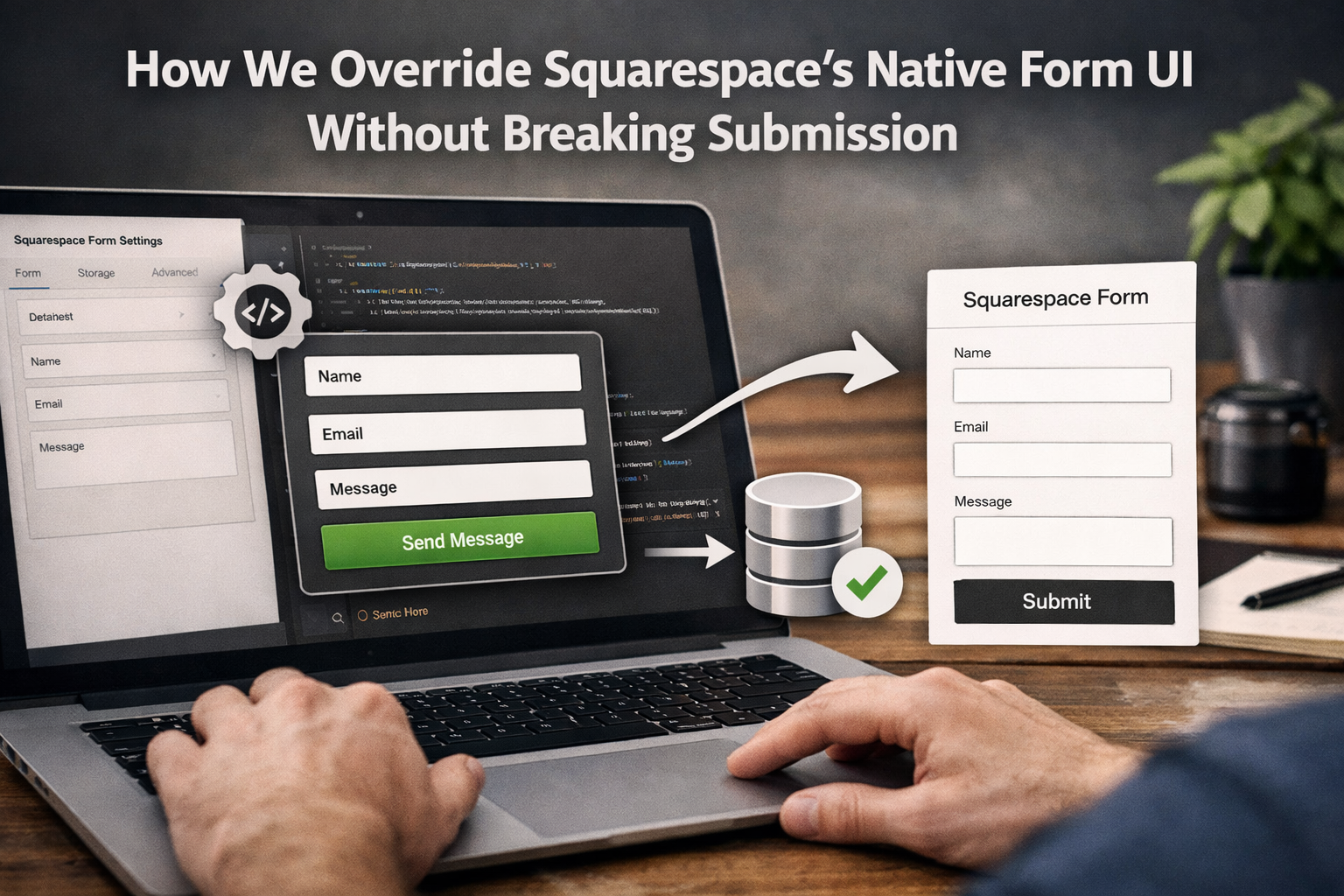
Squarespace's native form blocks work fine out of the box. The problem is they look like Squarespace forms. If you're building a custom-designed page inside a Squarespace site — a service page with a specific design system, a landing page with brand-matched components — the default form inputs stick out like a sore thumb, and you can't style them into submission without fighting the platform.
The usual workarounds are painful. Embedding a third-party form tool (Typeform, Jotform, Gravity Forms via iframe) means separate submissions, separate integrations, and a form that doesn't match your design system. Custom code blocks with fetch() calls to Squarespace's form endpoint are fragile and break whenever Squarespace updates its internals. Hiding the native form and cloning it with CSS gets you so far, but Squarespace's input classes are obfuscated and change between updates.
What we do instead is simpler and more durable: we build a completely custom UI, then pipe the values into the hidden native form and trigger its submission programmatically — without touching Squarespace's endpoint logic at all.
The Core Problem: React-Controlled Inputs
Squarespace's form blocks are built on React. That means the input elements are controlled components — React manages their state internally, and simply setting element.value = 'something' doesn't work. The DOM value changes, but React's internal state doesn't update, so when the form submits, it sends the original empty values.
This is the reason most naive attempts at this pattern fail. You set the value, you click submit, the submission goes through empty. React never knew the value changed.
The Fix: setNativeValue
The solution is to bypass React's synthetic event system and fire a native input event in a way that React's internal reconciler actually picks up. Here's the function we use on every project:
javascript
function setNativeValue(el, value) {
  if (!el) return;
  const proto = el.tagName === 'TEXTAREA'
    ? HTMLTextAreaElement.prototype
    : HTMLInputElement.prototype;
  const setter = Object.getOwnPropertyDescriptor(proto, 'value').set;
  setter.call(el, value);
  el.dispatchEvent(new Event('input',  { bubbles: true }));
  el.dispatchEvent(new Event('change', { bubbles: true }));
  el.dispatchEvent(new Event('blur',   { bubbles: true }));
}
What this does:
1. Gets the native property descriptor. We grab the value setter from the prototype directly — HTMLInputElement.prototypeor HTMLTextAreaElement.prototype — rather than setting the property on the instance. This is necessary because React overrides the instance-level value setter to intercept changes. Going to the prototype bypasses that override.
2. Calls the setter with call. We invoke the native setter in the context of the actual element. This updates the DOM value in a way that React's fiber reconciler recognizes as a genuine change.
3. Dispatches three events. We fire input, change, and blur — all with bubbles: true. React listens for these at the root of the document via event delegation. The input event triggers React's onChange handler. The change event handles cases where the component listens for that instead. The blur event is important for form validation — Squarespace validates on blur, and without it, required fields may still report as empty on submit.
Wiring It Up
With setNativeValue in hand, the pattern is straightforward. Your custom form collects values from your own inputs, then pipes them into the hidden native form:
javascript
function handleSubmit() {
  const firstName = document.getElementById('custom-first').value.trim();
  const email     = document.getElementById('custom-email').value.trim();
  const message   = document.getElementById('custom-message').value.trim();

  if (!firstName || !email || !message) {
    alert('Please fill in all required fields.');
    return;
  }

  // Disable the custom submit button
  const btn = document.getElementById('custom-submit-btn');
  btn.disabled = true;
  btn.textContent = 'Sending...';

  // Pipe values into native Squarespace fields
  setNativeValue(
    document.getElementById('name-XXXXXXXX-fname-field'),
    firstName
  );
  setNativeValue(
    document.getElementById('email-XXXXXXXX-field'),
    email
  );
  setNativeValue(
    document.getElementById('textarea-XXXXXXXX-field'),
    message
  );

  // Trigger native submission after a short delay
  setTimeout(triggerNativeSubmit, 200);
}
The 200ms delay before triggering submission gives React time to process the events and update its internal state. Without it, you can still get empty submissions on slower devices.
Triggering Native Submission
Squarespace's submit button has a consistent class you can target:
javascript
function triggerNativeSubmit() {
  const nativeSubmit =
    document.querySelector('.form-submit-button') ||
    (window.parent?.document?.querySelector('.form-submit-button')) ||
    (window.top?.document?.querySelector('.form-submit-button'));

  if (nativeSubmit) nativeSubmit.click();
  waitForSuccess();
}
The window.parent and window.top fallbacks handle cases where your code block is running inside an iframe context — which can happen depending on how Squarespace loads certain page sections.
Detecting Successful Submission
Squarespace replaces the form with a success state by populating a specific div after submission completes. Each form block has a unique submission div with this structure:
html
<div
  id="form-submission-html-XXXXXXXXXXXXXXXXXX"
  class="sqs-form-block-submission-html"
  data-submission-html="">
</div>
After submission, Squarespace populates innerHTML of that div with your configured success message. We poll for that change:
javascript
function waitForSuccess() {
  let attempts = 0;

  const checker = setInterval(function() {
    attempts++;

    const successEl =
      document.getElementById('form-submission-html-XXXXXXXXXXXXXXXXXX') ||
      (window.parent?.document?.getElementById('form-submission-html-XXXXXXXXXXXXXXXXXX')) ||
      (window.top?.document?.getElementById('form-submission-html-XXXXXXXXXXXXXXXXXX'));

    if (successEl && successEl.innerHTML.trim() !== '') {
      clearInterval(checker);
      showCustomSuccess();
      return;
    }

    // Fallback: show success after 3 seconds regardless
    if (attempts >= 10) {
      clearInterval(checker);
      showCustomSuccess();
    }
  }, 300);
}

function showCustomSuccess() {
  document.getElementById('customForm').style.display = 'none';
  document.getElementById('customSuccess').style.display = 'block';
}
The interval runs every 300ms and checks up to 10 times (3 seconds total). If the success div never populates — which can happen if there's a network hiccup or Squarespace's submission handler takes longer than expected — the fallback fires anyway and shows your custom success state. The submission almost certainly went through; the fallback just prevents the UI from getting stuck in a "Sending..." state indefinitely.
Finding the Native Field IDs
The field IDs you need to target are generated by Squarespace and stable for a given form. The easiest way to find them is to inspect the page with DevTools while the form is visible. Look for inputs with IDs that follow these patterns:
Name fields: name-XXXXXXXX-fname-field and name-XXXXXXXX-lname-field
Email: email-XXXXXXXX-field
Phone: phone-XXXXXXXX-input-field
Textarea: textarea-XXXXXXXX-field
The XXXXXXXX portion is a UUID that's unique to each form block instance. These IDs persist across page saves and don't change unless you delete and recreate the form block.
The submission div ID follows a different pattern: form-submission-html-XXXXXXXXXXXXXXXXXX. You can find it in the source of the page — it's always rendered in the DOM even before a submission occurs.
Hiding the Native Form
You don't need to write any CSS for this. In Squarespace's editor, simply click on the native form block, open the block settings, and use the Hide on Desktop and Hide on Mobile toggles to make it invisible on all devices. The form block stays fully present in the DOM — which is what matters for the submission to work — but users never see it.
This is cleaner than a CSS visually-hidden hack and survives Squarespace updates without any maintenance. Just make sure you're hiding the block, not deleting it. If the form block is removed from the page, the native field IDs and submission div disappear with it and the entire pattern breaks.
One Important Gotcha: Email Obfuscation
If any of your custom form UI displays email addresses — in placeholder text, labels, or anywhere as literal text — Squarespace's Cloudflare integration will obfuscate them on render, replacing the @ character with [email protected] and wrapping the whole thing in a Cloudflare protection link.
The fix is to use HTML entities or render emails via JavaScript:
html
<!-- Entity encoding — safe from obfuscation -->
hello@yourdomain.com
<!-- Or render via JS -->
<span id="contact-email"></span>
<script>
document.getElementById('contact-email').textContent =
'hello' + '\u0040' + 'yourdomain.com';
</script>Both approaches work. Entity encoding is simpler for static text. The JS approach is better if the email appears in multiple places or is part of a component.
Why Not Just Use a Third-Party Form?
The main reasons we don't:
Submissions stay in Squarespace. All form data flows through Squarespace's native system — into the built-in submissions panel, through any configured email notifications, and into any connected integrations (Mailchimp, Google Sheets, Zapier, etc.). There's no separate tool to configure or maintain.
No extra dependencies. No Typeform embed, no Jotform script, no iframe. One less thing to break, one less vendor to deal with.
Full design control. The custom UI is entirely yours — designed to match your system, with whatever validation UX, field ordering, and interaction states you want.
It's durable. This technique relies on native browser APIs (Object.getOwnPropertyDescriptor, dispatchEvent) rather than Squarespace internals. It's survived multiple Squarespace platform updates without modification.
The tradeoff is that it requires knowing the native field IDs upfront, and those IDs change if someone deletes and recreates the form block. For client sites, we document them and note them in the handoff. For our own pages, we grab them once and they stay stable.
If you've been banging your head against this problem — custom form UI that won't submit, empty values going through, React state not updating — hopefully this gives you a clear path forward.
And if you'd rather just have it working than spend another afternoon in DevTools: that's what we're here for. We build custom Squarespace experiences for businesses that need their site to look and work exactly the way they want it to — forms included. Get in touch and tell us what you're trying to build.
Frequently Asked Questions
Why doesn't just setting element.value work on Squarespace forms?
Squarespace forms are built on React, which means inputs are controlled components — React manages their state internally. When you set element.value directly, the DOM updates but React's internal state doesn't. So when the form submits, React sends its own state (still empty) instead of what you set. You have to go through the native prototype setter and fire the right events to make React actually register the change.
What's the difference between hiding the form block and deleting it?
Everything. The native form block needs to stay on the page for the submission to work — it holds the field IDs, the submission div, and the connection to Squarespace's backend. If you delete it, all of that disappears and your custom form has nothing to submit to. You hide the block using Squarespace's built-in Hide on Desktop / Hide on Mobile toggles in the block settings. It stays in the DOM, invisible to users, fully functional for submission.
Will this break if Squarespace updates?
It's held up through multiple Squarespace platform updates because it relies on native browser APIs — Object.getOwnPropertyDescriptor and dispatchEvent — rather than Squarespace internals. The one thing that could break it is if Squarespace rebuilds their forms without React, which would ironically make the technique unnecessary. The field ID pattern could also change if Squarespace redesigns the form block system, but that would be a significant platform change with plenty of warning.
How do I find the native field IDs I need to target?
Open the page in your browser, right-click the native Squarespace form (before you hide it), and inspect the element. Look for input elements with IDs following the pattern name-XXXXXXXX-fname-field, email-XXXXXXXX-field, and so on. The UUID in the middle is unique to your form block instance and stays stable as long as you don't delete and recreate the form. The submission div ID — form-submission-html-XXXXXXXXXXXXXXXXXX — is in the page source and is always present in the DOM even before submission.
Why not just use a third-party form like Typeform or Jotform?
You can, but you lose Squarespace's native submission infrastructure — the submissions panel, email notifications, and any integrations you've set up through Squarespace (Mailchimp, Zapier, Google Sheets, etc.). You also add an external dependency and an iframe that's harder to style consistently. The native override keeps everything in one place, adds no extra vendor, and gives you full design control without giving anything up on the backend.
What happens if the submission fails or the success div never populates?
The polling function checks every 300ms for up to 3 seconds. If the success div never populates — due to a network issue or slow response — the fallback fires after 10 attempts and shows your custom success state anyway. In practice, the submission almost always went through even if the confirmation is delayed. The fallback just prevents the UI from getting stuck in a "Sending..." state indefinitely while the user stares at a disabled button.
Why are email addresses in my custom form showing as protected?
Squarespace's Cloudflare integration scans the rendered page for anything that looks like an email address and obfuscates it — replacing the @ with encoded characters and wrapping it in a Cloudflare protection link. The fix is to use HTML entities (hello@domain.com) for static email text, or render the email via JavaScript using \u0040 for the @ character. Either approach bypasses the scanner since it only looks at literal @ characters in the source HTML.