Squarespace to Shopify Migration SEO Checklist
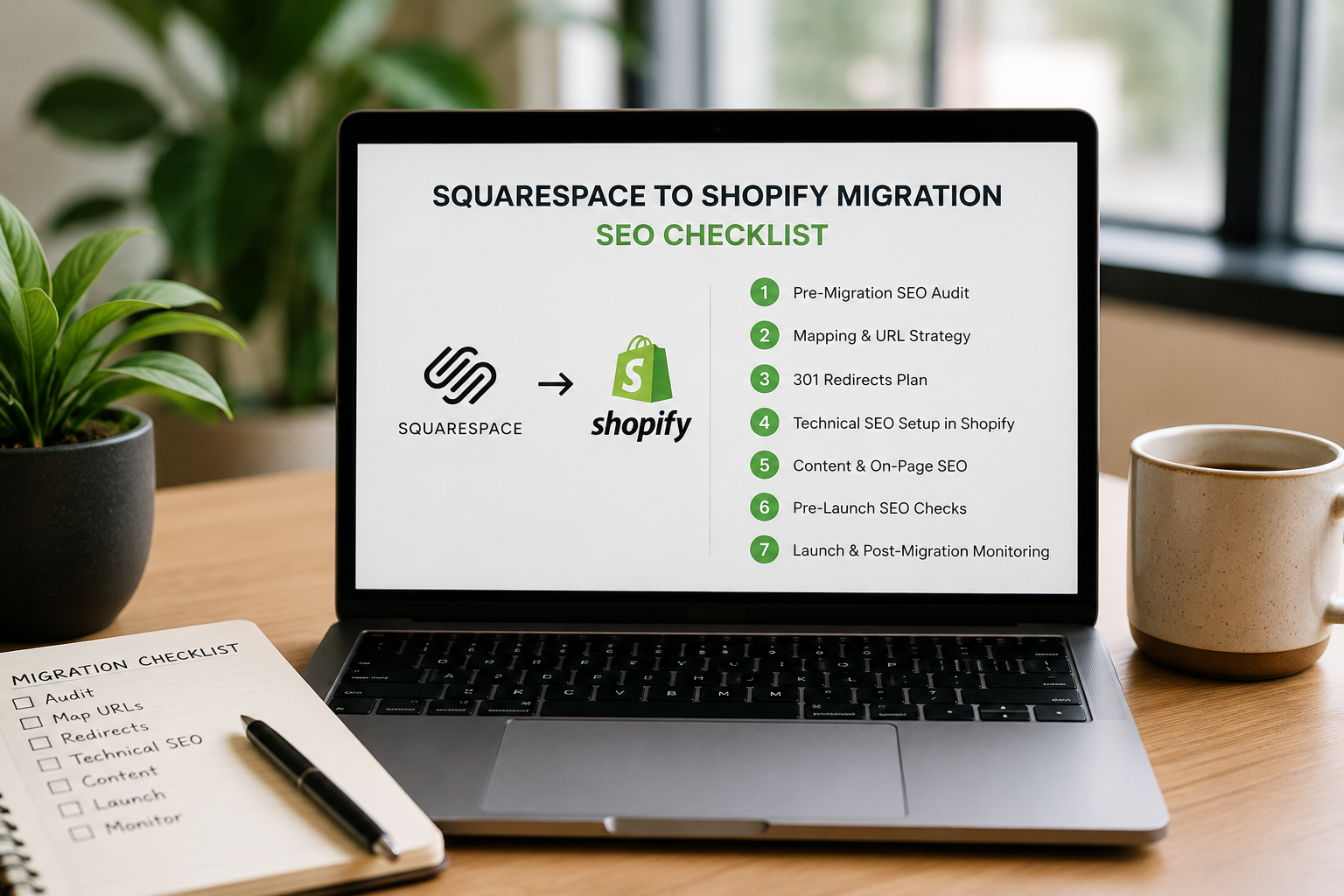
Migrating an e-commerce site from Squarespace to Shopify is one of the most common platform moves in the DTC and small business space right now — and one of the most SEO-consequential. Unlike a brochure site migration where a handful of pages and a few hundred backlinks are at stake, an e-commerce migration involves product pages, collection pages, variant URLs, canonical handling for filtered results, structured data for products and reviews, and a revenue stream that is directly tied to search visibility.
The stakes are higher and the complexity is greater than most merchants anticipate when they initiate the move. A Squarespace to Shopify migration that goes wrong doesn't just cost rankings — it costs revenue, immediately and measurably, in ways that make the problem impossible to ignore.
This checklist covers every step of the migration in the order it needs to happen, with specific attention to the e-commerce SEO considerations that generic migration guides miss.
Phase One: Pre-Migration Audit and Inventory
Nothing gets redirected, rebuilt, or discarded until it has been inventoried. This phase is the foundation everything else is built on.
□ Full site crawl of the Squarespace store. Use Screaming Frog, Sitebulb, or Ahrefs Site Audit to crawl the entire Squarespace site before any migration work begins. Export every URL — every product page, every collection page, every blog post, every static page, every image URL that might carry inbound links. This crawl is your source of truth for the redirect map.
□ Export all product data from Squarespace. Download the complete product catalog including product titles, descriptions, SKUs, prices, variants, images, and any existing meta titles and descriptions. Squarespace allows product export via CSV. This export becomes the import file for Shopify — but review it carefully before importing, because Squarespace and Shopify use different field structures and direct imports frequently create data quality issues.
□ Identify high-value URLs. Cross-reference the crawl with Google Analytics organic channel data and Google Search Console impressions to identify which URLs are driving organic traffic. Product pages, collection pages, and blog posts with meaningful organic traffic or keyword rankings are your highest-priority assets — the ones where post-migration 404s are most costly.
□ Export backlink profile. Pull a complete backlink export from Ahrefs or Semrush. Identify every URL on the Squarespace site that has inbound links from external domains. Every linked URL needs either to be preserved exactly at the same URL in Shopify or redirected with a 301 to the correct destination. Pay particular attention to product pages with editorial links — review sites, press coverage, influencer content — that represent real link equity.
□ Document current URL structure. Squarespace and Shopify use different URL structures for equivalent content types. Map the differences explicitly before building anything in Shopify.
Squarespace product URLs typically follow: /store/product-name Shopify product URLs follow: /products/product-name
Squarespace collection URLs typically follow: /store or /store/category-name Shopify collection URLs follow: /collections/collection-name
Squarespace blog post URLs typically follow: /blog/post-slug Shopify blog post URLs follow: /blogs/blog-name/post-slug
Every one of these structural differences creates a redirect requirement for every URL in that content type. Understanding the full scope of URL changes before migration begins prevents the surprise of discovering the redirect map is three times larger than expected mid-migration.
□ Audit existing meta titles and descriptions. Export or manually document the meta titles and descriptions on your highest-priority Squarespace pages. Shopify doesn't import these automatically — they need to be re-entered or imported separately. High-priority pages with carefully optimized meta titles and descriptions should preserve that optimization in Shopify rather than reverting to default generated values.
□ Audit existing schema markup. Document any structured data markup currently on the Squarespace site — product schema, review schema, breadcrumb schema, organization schema. Squarespace generates some schema automatically. Shopify generates some schema automatically through its theme. The overlap and gaps between the two need to be identified so schema gaps can be filled post-migration.
□ Record Core Web Vitals baseline. Run PageSpeed Insights on your highest-traffic product pages and collection pages to establish a pre-migration performance baseline. Post-migration performance comparison against this baseline is one of the quality indicators that a Shopify theme is performing well technically.
□ Export Google Search Console baseline data. Pull a full data export from Search Console — impressions, clicks, average position, and top queries for the past three to six months. This baseline is what you'll compare post-migration performance against to identify ranking changes and diagnose specific page-level problems.
Phase Two: Shopify Setup and Configuration
□ Choose a Shopify theme with strong technical SEO foundations. Not all Shopify themes are created equal from an SEO perspective. Before committing to a theme, verify: clean semantic HTML structure, fast load times on PageSpeed Insights, proper heading hierarchy, responsive design with good mobile Core Web Vitals, and no render-blocking JavaScript in the critical path. The theme is the technical foundation everything else is built on — a theme with poor performance characteristics creates a ceiling on SEO outcomes that no amount of content optimization can overcome.
□ Configure the Shopify store URL and domain. Shopify stores operate on a myshopify.com subdomain by default. Before launch, connect your custom domain and configure Shopify to redirect the myshopify.com domain to the custom domain to prevent duplicate content issues. Verify SSL is active on the custom domain.
□ Set up URL redirects in Shopify before importing content. Shopify's redirect management is in the Online Store > Navigation > URL Redirects section. Build your redirect map before importing products — so that when content goes live in Shopify at new URLs, the old Squarespace URLs are already configured to redirect correctly.
For large redirect sets, Shopify allows bulk redirect import via CSV. The CSV format requires two columns: redirect from and redirect to. Building the full redirect map in a spreadsheet and importing it as a CSV is significantly more efficient than entering redirects one by one.
□ Configure robots.txt. Shopify has a robots.txt.liquid file that controls crawler access. The default Shopify robots.txt is reasonable for most stores but may need customization — particularly to ensure that faceted navigation URLs, checkout pages, account pages, and other non-indexable content is correctly blocked while all indexable product and collection pages are allowed.
□ Verify canonical tag configuration. Shopify generates canonical tags automatically for product pages and collection pages. The default canonical behavior handles the most common duplicate content scenario — Shopify creates multiple URLs for the same product when it appears in multiple collections (/collections/collection-a/products/product-name and /collections/collection-b/products/product-name both point to the same product) by canonicalizing all collection-specific product URLs to the canonical /products/product-name URL. Verify this behavior is working correctly after product import.
Phase Three: Content Migration
□ Import products with quality control. Import the product catalog from the Squarespace CSV export, but review and clean the data before importing. Common data quality issues in Squarespace to Shopify CSV migrations include: HTML formatting that renders incorrectly in Shopify's product description editor, image URLs that reference Squarespace's CDN rather than uploaded images, variant data that doesn't map correctly to Shopify's variant structure, and meta field data that doesn't transfer cleanly. Import a small test batch first, verify the output in Shopify, and correct any formatting or mapping issues before importing the full catalog.
□ Re-upload product images to Shopify. Product images that exist on Squarespace's CDN need to be re-uploaded to Shopify — Shopify will not serve images from Squarespace's CDN after the migration. For large product catalogs, this is one of the most time-consuming aspects of the migration. Shopify's image handling automatically generates multiple sizes for responsive delivery — verify that images are uploading at sufficient resolution for Shopify to generate all required sizes.
□ Recreate collection structure. Shopify collections are the equivalent of Squarespace store categories. Recreate the collection structure in Shopify that matches the navigational and SEO architecture of the Squarespace store — including collection meta titles, descriptions, and any collection-level content that existed on Squarespace category pages. Collection pages with organic traffic from Squarespace represent SEO value that needs to be preserved in the equivalent Shopify collection.
□ Migrate blog content. Blog posts don't migrate automatically from Squarespace to Shopify. Each post needs to be recreated in Shopify's blog system — either manually for small blogs or through a third-party migration tool for larger content libraries. Preserve publication dates, author information, and any structured data that existed on the Squarespace blog. Shopify blog post URLs follow a different structure than Squarespace (/blogs/blog-name/post-slug versus /blog/post-slug) — ensure redirects are in place for every post URL that changes.
□ Recreate static pages. About pages, contact pages, FAQ pages, policy pages, and other static content need to be recreated in Shopify's Pages section. Shopify automatically generates policy pages (privacy policy, terms of service, refund policy, shipping policy) — verify that these generated pages are either used or have the custom versions you've created set as the canonical versions.
□ Configure meta titles and descriptions. For every product, collection, and page in Shopify, verify that meta titles and descriptions are set explicitly rather than relying on Shopify's auto-generated defaults. Shopify's auto-generated meta titles use the product title or page title as the meta title and the first sentence of the description as the meta description — functional but typically not optimized. Your highest-priority pages should have explicitly crafted meta titles and descriptions that match or improve on what existed in Squarespace.
Phase Four: Technical SEO Configuration
□ Submit XML sitemap to Google Search Console. Shopify generates an XML sitemap automatically at /sitemap.xml. After the store goes live on the custom domain, verify the sitemap is complete and accurate — that it includes all indexable product pages, collection pages, blog posts, and static pages — and submit it to Search Console. Shopify generates a sitemap index that references separate sitemaps for products, collections, blogs, and pages — verify all sub-sitemaps are included and contain the correct URLs.
□ Implement product schema. Shopify themes typically generate basic product schema automatically — product name, description, price, currency, and availability. Verify the schema output for your products using Google's Rich Results Test and identify any gaps. Enhanced product schema — including review aggregate ratings, brand, GTIN/MPN for products with those identifiers, and shipping information — may require theme customization or a Shopify app to implement.
□ Verify breadcrumb schema. Breadcrumb schema communicates site hierarchy to search engines and AI systems. Shopify themes vary in whether they generate breadcrumb schema automatically. Verify breadcrumb schema is present and correct for product pages — the breadcrumb path from Home to Collection to Product should be reflected in the schema as it is in the visible breadcrumb navigation.
□ Implement review schema if applicable. If the Squarespace store had product reviews displayed on product pages, verify that the review schema is correctly implemented on equivalent Shopify product pages. Review schema — showing star ratings in search results — is one of the most visible SEO enhancements for e-commerce product pages and is frequently implemented incorrectly in theme migrations.
□ Configure hreflang if selling in multiple markets. For stores selling in multiple countries or languages, Shopify's Markets feature handles international expansion but hreflang implementation requires explicit configuration. Verify that hreflang tags correctly identify the language and regional targeting for each version of international pages.
□ Verify mobile performance. Run mobile PageSpeed Insights on your highest-traffic product pages and collection pages immediately after launch. Mobile Core Web Vitals — Largest Contentful Paint, Cumulative Layout Shift, Interaction to Next Paint — directly affect both search rankings and conversion rates. Address any critical mobile performance issues before the new site has been crawled extensively by Googlebot.
□ Check for duplicate content from faceted navigation. If the Shopify store uses filtering and sorting functionality, verify that filtered URLs are either canonicalized to the base collection URL or blocked in robots.txt. Faceted navigation creates large numbers of unique URLs for the same underlying content — a collection page with color, size, and price filters can generate hundreds of URL combinations. Allowing all of these to be indexed creates duplicate content issues that dilute collection page authority.
Phase Five: Redirect Verification and Launch
□ Test every redirect in the map before DNS switch. Using the redirect testing approach of your choice — Screaming Frog can crawl a list of URLs and report redirect chains and final destinations — verify that every redirect in your map is resolving correctly to the intended destination. Identify and fix any redirect chains longer than one hop, any redirects resolving to 404s, and any redirects going to wrong destinations before the migration goes live.
□ Verify no redirect loops exist. A redirect loop — where URL A redirects to URL B which redirects back to URL A — creates an immediate crawl error. Test for loops explicitly, particularly in cases where both the old and new URLs exist in the redirect map.
□ Switch DNS and verify propagation. Update DNS records to point to Shopify's servers and monitor propagation. During DNS propagation — which typically takes minutes to a few hours with modern DNS providers — the site may be intermittently accessible from both the old Squarespace hosting and the new Shopify hosting. Plan the DNS switch for low-traffic periods to minimize the impact of propagation-period inconsistency.
□ Verify Squarespace is no longer serving content at the production domain. After DNS propagation is complete, verify that the old Squarespace store is no longer accessible at the production domain and that all traffic is being served by Shopify. If the Squarespace store remains active at the production domain during a prolonged transition period, it creates duplicate content issues and confuses search engines about which version to index.
□ Submit updated sitemap to Search Console. Submit the Shopify sitemap to Search Console immediately after the DNS switch. Request crawling of the highest-priority pages through the URL Inspection tool to accelerate reindexation.
□ Test a representative sample of redirects on the live domain. After DNS propagation, test redirects on the live domain rather than relying solely on pre-launch testing. Occasionally redirect behavior in a live environment differs from staging or pre-launch testing due to server configuration differences.
Phase Six: Post-Launch Monitoring
□ Monitor Search Console daily for the first two weeks. Check the Coverage report for new 404 errors — any that appear post-launch indicate missing redirects. Check the Performance report for impression and click changes on the highest-priority pages. Any page that was generating significant organic traffic pre-migration and shows no impressions post-migration warrants immediate investigation.
□ Monitor organic traffic in Google Analytics daily. Compare daily organic sessions to the equivalent pre-migration period. A traffic drop of more than 20 to 30 percent in the first week that doesn't begin recovering in the second week indicates a systemic problem rather than normal migration volatility.
□ Investigate 404 errors immediately. Every 404 error surfaced in Search Console post-launch represents either a missing redirect or a redirect pointing to the wrong destination. Add missing redirects within 24 hours of discovering them — the longer a linked or previously ranked URL returns a 404, the more ranking authority erodes.
□ Verify product rich results in Search Console. Check the Search Console Enhancements section for product rich result status. Errors in product schema implementation that prevent rich results from appearing — invalid price formatting, missing required fields, incorrect availability values — should be corrected promptly because rich results visibility affects click-through rates on product pages.
□ Compare Core Web Vitals post-migration to baseline. Run PageSpeed Insights on the same pages you tested pre-migration and compare results. Performance regression — particularly on mobile — that wasn't present on the Squarespace site indicates theme or app performance issues that need to be addressed.
□ Benchmark rankings at two weeks and four weeks post-migration. Run keyword ranking checks for your highest-priority product and collection page keywords at two weeks and four weeks post-migration. Normal migration volatility should be resolving by week four — pages that haven't recovered to within 20 percent of pre-migration positions by then have specific issues that need diagnosis.
Shopify-Specific SEO Considerations
Shopify's URL structure for products in collections creates a recurring SEO consideration. When a product is accessed through a collection — /collections/collection-name/products/product-name — Shopify generates a different URL than the canonical product URL — /products/product-name. Shopify handles this with automatic canonicalization, pointing collection-specific product URLs to the /products/ canonical. Verify this is working correctly and that you're building internal links to the /products/ canonical URL rather than to collection-specific product URLs.
App bloat is a common Shopify performance problem. Every Shopify app that adds functionality to the storefront potentially adds JavaScript and CSS to page load. Apps installed during or after migration should be evaluated for performance impact — an app that adds 500ms to page load on product pages may cost more in SEO performance than the functionality it adds is worth. Audit installed apps regularly and remove any that aren't actively used.
Shopify's default pagination creates thin content on deep collection pages. Collection pages paginate with URL parameters (/collections/collection-name?page=2). Verify these paginated URLs are handled correctly — either canonicalized to the first page or allowed to be indexed with sufficient unique content on each page to avoid thin content issues.
Ritner Digital manages e-commerce platform migrations with an SEO-first process built around protecting organic revenue from day one. If you're planning a Squarespace to Shopify migration or evaluating the SEO implications of your options, start the conversation here.
Frequently Asked Questions
How long does a Squarespace to Shopify migration typically take from start to launch?
For a small store with under 100 products and a modest content library, a well-executed migration takes four to six weeks from audit to launch. Mid-size stores with 100 to 500 products, established blog content, and meaningful organic traffic typically take six to ten weeks — the additional time goes into redirect mapping at scale, content quality control during product import, and more extensive pre-launch QA across a larger URL set. Large stores with thousands of products, complex collection structures, and significant organic search revenue should budget three to four months minimum. The timeline is almost always longer than merchants expect because the audit, redirect mapping, and QA phases are more labor-intensive than the visible design and product setup work — and rushing those phases is where post-migration ranking losses originate.
Will our product rankings survive the migration to Shopify?
A technically clean migration — complete redirect map, correct canonical configuration, preserved meta titles and descriptions, equivalent or better page speed — should hold product rankings through the migration with only short-term volatility. The product pages most at risk are those with specific inbound links pointing to exact Squarespace URLs — if those links aren't redirected correctly, the link equity they represent is lost immediately. The collection pages most at risk are those where the Shopify equivalent doesn't replicate the content depth of the Squarespace category page — thin collection pages in Shopify that replace content-rich category pages in Squarespace will almost always see ranking declines. The most common cause of persistent post-migration product ranking losses is incomplete redirect maps, not the platform change itself.
Can we change our store's URL structure during the migration or should we keep it the same?
The Squarespace to Shopify migration already forces URL structure changes for every content type — products move from /store/product-name to /products/product-name, collections change structure, blog posts change structure. These unavoidable structural changes are why redirect mapping is so critical. Beyond the unavoidable structural changes imposed by the platform difference, avoid making additional discretionary URL structure changes during the migration — don't reorganize your collection taxonomy, don't change product slugs, don't restructure your blog URL format beyond what Shopify's structure requires. Each additional URL change multiplies the redirect complexity and the risk of errors. Make the platform migration as structurally conservative as possible, stabilize rankings post-migration, and then make deliberate architectural improvements as a separate initiative.
How do we handle product variants in Shopify that were structured differently in Squarespace?
Squarespace and Shopify handle product variants with different data structures, and direct CSV imports frequently create variant mapping problems that require manual correction. The most common issues are: variant combinations that don't map correctly to Shopify's option structure, variant-specific images that don't associate correctly with the right variants after import, and variant-level pricing that gets flattened or lost during migration. Before importing the full catalog, test the variant migration with a small batch of your most complex products — products with multiple variant dimensions, variant-specific pricing, and variant-specific images — and verify the output is correct before scaling to the full catalog. Fixing variant data issues in a 500-product catalog after import is significantly more time-consuming than identifying and correcting the mapping logic before import.
Does Shopify generate product schema automatically or do we need to implement it ourselves?
Shopify themes generate basic product schema automatically — typically including product name, description, price, currency, and availability. Whether that basic schema is sufficient depends on your specific SEO goals and the competitive landscape for your product category. For product pages competing for rich result display in Google Search, the basic auto-generated schema is often insufficient — it frequently lacks review aggregate data, brand information, GTIN or MPN identifiers, and shipping information that can qualify product pages for enhanced rich result formats. Check your theme's schema output using Google's Rich Results Test immediately after migration and identify gaps relative to what was in place on Squarespace. A Shopify app or theme customization to enhance product schema is typically one of the first post-migration SEO investments worth making for e-commerce stores where rich results are commercially significant.
What's the best way to handle Squarespace blog content that we want to keep for SEO but not actively maintain?
Migrate it to Shopify as published content but don't prioritize it in navigation or internal linking — let it exist as an indexed archive rather than active content. The SEO case for migrating blog content even if you don't plan to add new posts is that existing posts may have organic rankings and inbound links that represent real search value. Leaving that content behind as 404s after migration destroys that value. Migrating it and redirecting old URLs to the new Shopify blog post URLs preserves the value without requiring ongoing content investment. Posts that have significant organic traffic should be reviewed for content freshness and updated if the information is outdated — stale content that ranks well in Squarespace may lose those rankings in Shopify if the migration coincides with a crawl that reveals the content is no longer current.
How do we prevent Shopify apps from hurting our SEO after migration?
Audit app performance impact before installing and after each new installation. The practical approach is running PageSpeed Insights on your highest-traffic product page and collection page immediately before and immediately after installing any new app that adds storefront functionality. If a new app adds more than 200 to 300 milliseconds to page load or measurably worsens Core Web Vitals scores, evaluate whether the functionality it provides justifies the performance cost. Some app categories are particularly prone to performance impact — review apps that load external scripts, loyalty apps with widget overlays, chat and support apps, and upsell or cross-sell apps that inject dynamic content. Keeping the installed app count lean and removing apps that aren't actively generating business value is one of the most consistently impactful ongoing SEO maintenance practices for Shopify stores.
Should we hire an agency for this migration or can we do it ourselves?
For small stores with under 50 products, straightforward collection structures, minimal blog content, and limited organic traffic — meaning there's relatively little SEO value at risk — a careful DIY migration using this checklist as a guide is feasible. For stores where organic search is a meaningful traffic and revenue channel — where product pages rank for commercial keywords, where collection pages have accumulated authority, where the blog drives measurable organic traffic — the cost of getting the migration wrong significantly exceeds the cost of professional help. The specific failure modes that cause lasting ranking damage — incomplete redirect maps, incorrect canonical configuration, schema gaps, performance regressions — are the areas where experienced migration practitioners add the most value, because they've seen those failure modes before and know how to prevent them. A migration that goes wrong on a store doing meaningful organic revenue is a problem that takes six to twelve months and significant investment to recover from — which reframes the cost of professional migration management as insurance rather than overhead.
Ritner Digital manages e-commerce platform migrations with an SEO-first process built around protecting organic revenue from day one. If you're planning a Squarespace to Shopify migration or want a second opinion on your migration plan, start the conversation here.