The Most Overlooked Accessibility Failure on Municipal Websites Isn't the Website — It's the PDFs
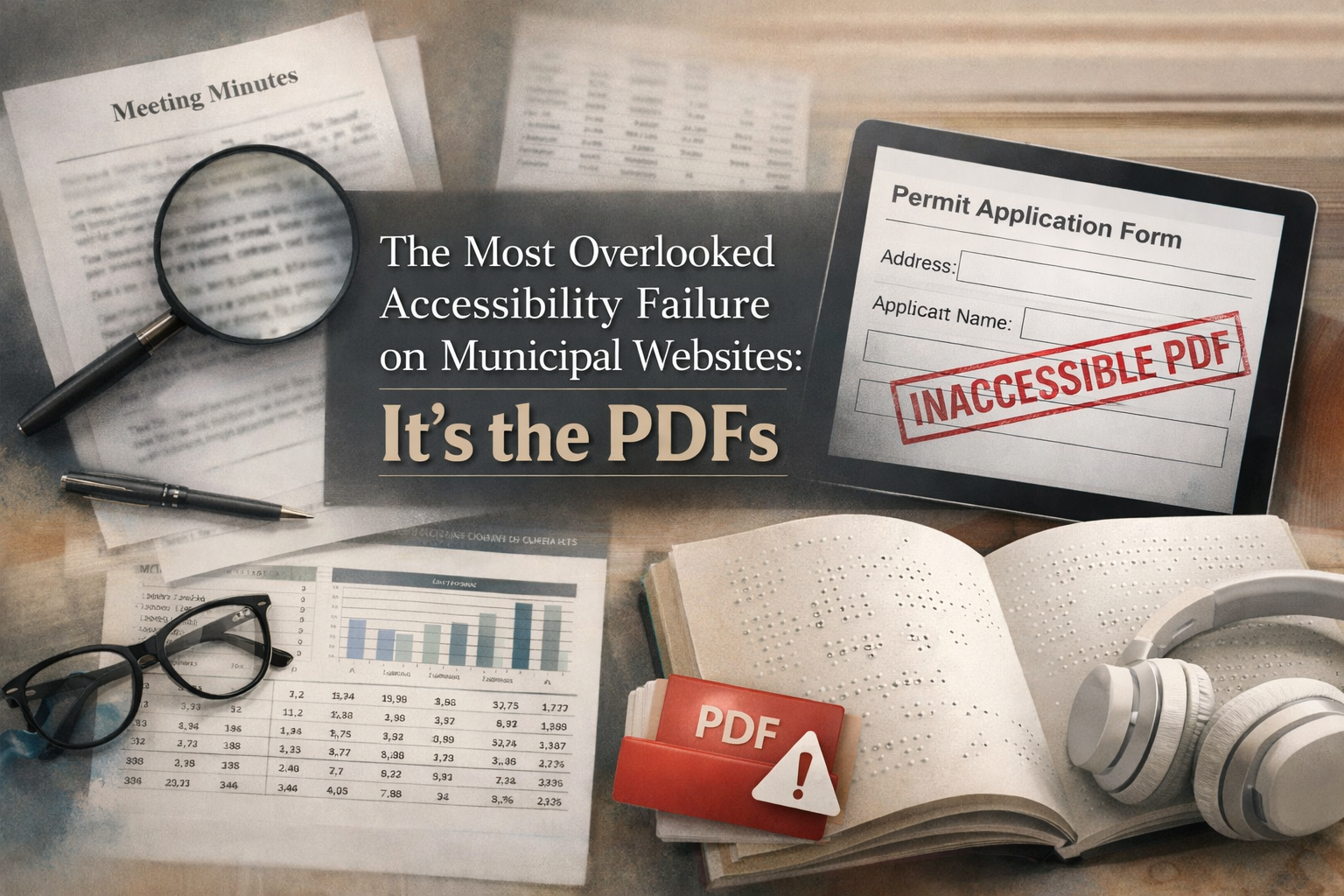
When municipalities start thinking about web accessibility — whether because of the DOJ's Title II deadline, a resident complaint, or just a general sense that it's time to modernize — the conversation almost always centers on the website itself. The layout. The navigation. The color contrast. The homepage. That's a reasonable place to start. But it's not where the biggest problem usually lives.
The biggest problem lives in the PDFs.
Meeting minutes. Permit applications. Zoning maps. Tax forms. OPRA request forms. Public notices. Budgets. Ordinances. Resolutions. RFPs. Letters to residents. Emergency notifications. These are the documents that residents actually need from their local government, and on many municipal websites across New Jersey, they're partially or completely inaccessible to anyone using a screen reader, a keyboard, or other assistive technology.
This isn't a minor technical shortcoming. For a resident who is blind and needs to file an OPRA request, a scanned PDF with no text layer is the equivalent of a locked door with no key. The information exists. It's been published. It's sitting right there on the website. And they cannot access it. Under the DOJ's Title II rule, that's a compliance gap — and it's one that many municipalities don't yet realize they have.
Why PDFs Are the Blind Spot
When web accessibility comes up in a municipal context, the focus tends to land on the website's design and structure. That makes sense. The website is what's most visible. It's what the vendor builds. It's what the redesign proposal covers.
But for most municipal websites, the pages themselves are really a shell. The substantive content — the information residents come to the site to find — lives inside documents. PDFs, almost always. And those PDFs are typically created through processes that weren't designed with accessibility in mind.
Someone scans a paper document on a copier and uploads the resulting image file as a PDF. This is the most common scenario we encounter, and it's the most problematic. A scanned PDF is just a picture of text. There's no actual text data in the file. A screen reader opens it and finds nothing — or reads out the filename and stops. The resident gets zero information. They can't search it, they can't copy text from it, they can't interact with it in any meaningful way.
Someone creates a document in Word, prints it, scans the printout, and uploads the scan. This produces the same result as above, with the additional irony that the document started its life as fully digital text. The scanning step strips out all the accessibility that was already there. It's one of the most fixable problems in the entire accessibility landscape — the document just needs to be exported to PDF directly from Word instead of being printed and scanned.
Someone exports a document to PDF from Word or another application, but without accessibility structure. The text is there — a screen reader can find it — but there are no tags, no heading structure, no reading order, no table markup, no form field labels. The screen reader reads the content as a single undifferentiated stream of text, which for a complex document like a budget or a zoning ordinance makes it extremely difficult to navigate to a specific section.
Someone uploads a PDF that was generated by another system — a financial application, a permitting system, a third-party vendor — without knowing whether it's accessible or not. They didn't create it. They don't know how to check it. They put it on the website because that's where it goes.
In each of these cases, a public document has been published that a segment of residents cannot use. And in each case, the person who uploaded it almost certainly didn't know they were creating a barrier. That's what makes this a blind spot — it's not a question of indifference, it's a question of process. When staff haven't been trained on document accessibility, when scanners are the default tool for digitizing paper, when there's no checklist or review step before a PDF goes live — inaccessible documents accumulate naturally. It's a systems problem, not a people problem.
What Makes a PDF Accessible
An accessible PDF isn't just one that has text you can select. It's a document that has been structured so that assistive technology can interpret and navigate it the same way a sighted user can. That means several specific things.
A tagged structure. PDF tags are the equivalent of semantic HTML for documents. They define what each element in the document is — a heading, a paragraph, a list item, a table cell, a form field. Without tags, a screen reader has no way to distinguish a section heading from body text, or to navigate a table cell by cell. It reads the content as a flat stream with no organization.
A logical reading order. In a visual document, the reading order is implied by the layout — left to right, top to bottom, columns flowing in sequence. But assistive technology doesn't see the layout. It follows the reading order defined in the document's tag structure. If that order is wrong — or if there's no defined order — the content comes out scrambled. A two-column layout might be read straight across both columns. A sidebar might be read before the main content. The document looks fine on screen and makes no sense through a screen reader.
Alternative text for images. Just like on a web page, images in a PDF need alt text that describes their content for users who can't see them. Charts, graphs, maps, photographs, signatures, logos — if it's an image, it needs a text alternative. Decorative images need to be marked as artifacts so screen readers skip them entirely rather than announcing "image" with no description.
Accessible tables. Tables in PDFs need proper header markup so that a screen reader can associate each data cell with its column and row headers. Without this, a screen reader reads the table as a sequence of disconnected values with no indication of what each value represents. For a municipal budget document or a meeting schedule, this makes the table functionally unusable.
Labeled form fields. If the PDF is a form — a permit application, an OPRA request, a registration form — each field needs a programmatic label that tells a screen reader what the field is for. A sighted user sees the label next to the field. A screen reader user hears the label when they navigate to the field — but only if the label has been properly associated. Without labels, the resident hears "text field" with no indication of what to type.
Proper language identification. The document should identify its language so that screen readers use the correct pronunciation rules. This is a small detail, but it matters — especially in communities where municipal documents may be published in both English and Spanish.
Bookmarks for long documents. For documents over a few pages — budgets, comprehensive plans, ordinances — bookmarks provide a navigable table of contents that lets screen reader users jump directly to the section they need instead of reading through the entire document linearly.
None of this is exotic technology. These are the same requirements that have been part of the PDF/UA standard for years, and they align directly with what WCAG 2.1 Level AA requires for document content. The tools to create accessible PDFs exist in software that most municipalities already own — Microsoft Word, Adobe Acrobat, Google Docs. The challenge isn't that accessible PDFs are hard to create. It's that the knowledge and processes to create them haven't made it into most municipal workflows yet.
What We've Seen in Gloucester County
Our reviews of municipal websites across Gloucester County have shown that PDF accessibility is a widespread challenge — and often the most significant accessibility issue on a given site.
Some municipal websites communicate with residents almost entirely through PDF uploads — public notices, meeting agendas, RFP documents, letters from officials. When the primary delivery mechanism for public information is PDFs and those PDFs lack accessible structure, the gap between what's been published and what's actually usable can be substantial.
Meeting minutes on several Gloucester County sites are uploaded as scanned documents — images of text with no text layer, no tags, no structure. A resident who uses a screen reader cannot read those minutes. Consider what that means: the municipality holds a public meeting, takes minutes as required by law, publishes those minutes as required by law — and then publishes them in a format that a portion of residents can't access. That's not an intentional exclusion. It's an artifact of a process that was set up before document accessibility was on the radar.
Forms and applications present a similar challenge. Permit applications, zoning requests, OPRA forms — many of these are published as PDFs without labeled form fields, which means a resident using assistive technology can see that a form exists but can't determine what information goes where. Some are scanned copies of paper forms, making them completely inert — not fillable, not searchable, not readable by a screen reader.
Budget documents and financial reports, which tend to be table-heavy, are particularly affected. A table without proper header markup is one of the hardest things for a screen reader user to interpret, and municipal financial documents almost always rely on tables. When those tables aren't tagged, the data becomes a string of numbers without context.
It's worth noting that these issues aren't unique to Gloucester County. They're common across municipal websites statewide and nationally. But awareness is the first step toward improvement, and the municipalities that have addressed document accessibility — like Montgomery Township, which specifically offers alternative formats on request, or Princeton, which has a formal ADA grievance procedure for reporting barriers — show that solutions are available and practical.
The Legal Context
The DOJ's updated Title II rule, which requires WCAG 2.1 Level AA conformance by April 2027 for municipalities under 50,000 in population, applies to web content — and that includes documents published on the web. PDFs posted on a municipal website are web content. They're covered by the rule. A municipality that builds a fully accessible website but continues uploading inaccessible PDFs hasn't fully met the standard.
PDF accessibility has been at the center of multiple ADA enforcement actions and lawsuits against government entities. The Department of Justice has entered into settlement agreements with municipalities and state agencies specifically over inaccessible documents. Courts have consistently held that digitally published government documents must be accessible to people with disabilities.
The risk isn't limited to large-scale litigation. An individual resident who can't access a meeting agenda or a permit application can file an ADA complaint with the DOJ directly. And the DOJ has made clear that web accessibility — including document accessibility — is an enforcement priority.
For municipalities that are still working toward website accessibility, the PDF dimension is important to factor into the plan. The compliance picture isn't complete without it, and addressing documents alongside web pages creates a more defensible position than addressing either one in isolation.
Why Overlays and Widgets Don't Help With PDFs
Some municipalities have installed overlay widgets on their websites — tools like AccessiBe, UserWay, or EqualWeb that add a floating button and claim to fix accessibility issues automatically. We've discussed overlays in previous posts, and the broad consensus from the disability community, accessibility professionals, and courts is that they don't deliver what they promise.
But even setting that debate aside, overlays have a fundamental limitation when it comes to documents: they can't reach inside PDFs. An overlay operates on the web page. It can modify HTML elements. It cannot add tags to a PDF, create a reading order, label form fields, or generate alt text for images within a document. When a resident clicks a link to download or view a PDF, they leave the web page environment. The overlay has no effect.
This matters because a municipality that has installed an overlay may reasonably believe it has addressed its accessibility obligations — but its document library remains exactly as it was before. For many municipal websites, documents represent the majority of the accessible content that needs attention. An overlay doesn't touch that majority.
How to Start Making Progress
PDF accessibility requires effort, but it's not an unsolvable problem. Municipalities can begin making meaningful improvements immediately, starting with changes that cost nothing and scaling up from there.
Stop Scanning Documents That Started as Digital Files
This is the single highest-impact change a municipality can make, and it's free. If a document was created on a computer — in Word, in Google Docs, in any application — it should be exported directly to PDF, not printed and scanned. Direct export preserves the text layer, which is the foundation of document accessibility. Scanning destroys it.
This one change won't make PDFs fully accessible on its own — you still need tagging, reading order, and structural elements — but it eliminates the worst-case scenario of publishing documents that assistive technology can't read at all. It's the difference between a document that needs improvement and one that's a complete barrier.
Use Word's Built-In Accessibility Features Before Exporting
Microsoft Word has a built-in accessibility checker that flags issues like missing alt text, missing table headers, and improper heading structure. Running this checker before exporting to PDF — and addressing what it finds — produces a significantly more accessible document than the default workflow most offices follow.
Word also supports heading styles, image alt text, properly structured tables, and document language settings, all of which carry over when you use the "Save as PDF" option with the "Document structure tags for accessibility" checkbox enabled. For routine documents like meeting minutes, public notices, and straightforward forms, this gets you most of the way to an accessible PDF without any specialized tools.
Create a Document Accessibility Checklist for Staff
A simple checklist, followed before any PDF is uploaded to the website, can prevent the most common problems from occurring. It doesn't need to be complicated. Was this document exported to PDF directly, not scanned? Does it have a descriptive filename? Have images been given alt text? Are headings used to organize the content? Has the accessibility checker been run? Is the document language set? Can you select and copy text from the PDF?
This kind of checklist doesn't catch everything, but it establishes a baseline standard and makes accessibility part of the routine rather than something that requires a separate audit. Over time, it builds habits that reduce the volume of inaccessible documents going onto the site.
Prioritize Your Most Important Documents for Remediation
Remediating an entire document library at once isn't realistic for most municipalities, and it doesn't need to happen all at once. Start with the documents that residents interact with most and that have the highest impact on their ability to engage with their local government. OPRA request forms. Permit applications. Current-year meeting agendas and minutes. Tax forms. Zoning applications. Public hearing notices. Budget summaries.
Identify your top twenty to thirty most critical documents, assess their current state, and remediate those first. This produces the biggest accessibility improvement for the effort invested and addresses the documents most likely to be the basis of a complaint or request.
Add an Alternative Formats Statement to Your Website
Publish a notice — ideally as part of a broader accessibility statement — letting residents know they can request documents in alternative formats. Provide a phone number and email address for making requests, and commit to responding promptly when they come in.
This doesn't resolve the underlying document issues, but it provides an immediate accommodation for residents who encounter a barrier, and it demonstrates good faith. Montgomery Township includes this kind of offer in its accessibility statement. It takes an afternoon to draft and publish.
Plan for Professional Help With Complex Documents
Some documents — comprehensive plans, detailed budgets, multi-section forms — may need professional remediation beyond what staff can do with Word's built-in tools. Working with a vendor who specializes in document accessibility makes sense for these higher-complexity files. The cost depends on volume and complexity, but it's a plannable expense — much more manageable when addressed proactively than when driven by a complaint or legal action.
If a website redesign is on your horizon, document remediation should be part of that scope. If a redesign isn't in the near-term plan, document remediation can still be pursued as a standalone project. Either approach moves you toward compliance and, more importantly, toward actually serving all of your residents.
The Bigger Picture
PDF accessibility isn't a separate issue from web accessibility. It's the same issue, expressed in a different format. The principle is identical: public information published by a government entity must be accessible to all residents, including those with disabilities. When that information lives on a web page, it needs semantic HTML, alt text, keyboard navigation, and proper contrast. When it lives in a PDF, it needs tags, reading order, alt text, form labels, and a text layer. The standard is the same. The obligation is the same. The residents affected are the same.
The municipalities that approach accessibility well understand this. They don't treat the website as one project and the documents as a separate concern. They treat the entire digital presence of their government as a single system that either works for all residents or doesn't.
For many municipalities, PDFs represent the largest category of accessibility gaps on their websites — and the one where progress can begin most immediately. You don't need a new website to start. You don't need a vendor. You don't need a budget line item. You need a policy, a checklist, and a commitment to stop publishing documents that a portion of your residents can't read. The bigger investments come later. The decision to start comes now.
Frequently Asked Questions
How Do I Know if the PDFs on Our Website Are Accessible?
The quickest test is to open a PDF and try to select text. If you can highlight and copy text, the document has a text layer — that's the minimum starting point. If you can't select any text, it's a scanned image and is completely inaccessible to screen readers. For a more thorough check, open the PDF in Adobe Acrobat and look at the tags panel — if there are no tags, the document lacks the structure that assistive technology needs to navigate it. You can also run free checks using the PAC (PDF Accessibility Checker) tool or Adobe Acrobat's built-in accessibility checker. For a comprehensive evaluation of your full document library, a professional audit will identify exactly which documents need remediation and what level of work each one requires.
We Have Hundreds of PDFs on Our Site. Do We Need to Fix All of Them?
All publicly posted documents should ultimately be accessible, but a phased approach is both practical and reasonable. Start with the documents residents use most and that have the greatest impact on their ability to interact with your municipality — current-year meeting minutes, active forms and applications, public notices, budgets, and any document that residents need in order to exercise a right or access a service. Work backward from there. A clear plan with defined priorities and a realistic timeline demonstrates good faith and makes the scope manageable.
Can We Just Convert Our PDFs to Web Pages Instead?
In many cases, yes — and it's often the better approach. Putting content directly on a web page rather than in a PDF makes it inherently more accessible. HTML is natively compatible with screen readers, it reflows on mobile devices, and it's easier to maintain. Not every document makes sense as a web page — a downloadable permit application probably still needs to be a PDF — but meeting minutes, public notices, frequently asked questions, and policy documents often work better as web content. If you're planning a website redesign, this is a worthwhile conversation to have with your vendor: which documents should remain as PDFs, and which should become pages?
Our CMS Generates PDFs Automatically. Are Those Accessible?
Not necessarily. The accessibility of auto-generated PDFs depends entirely on how the CMS has been configured. Some content management systems can produce tagged, structured PDFs out of the box. Others generate flat, untagged files that look fine visually but are unreadable to assistive technology. Ask your CMS vendor whether their auto-generated PDFs include tags, reading order, and proper structure — and then verify it yourself by running one through Adobe Acrobat's accessibility checker or the PAC tool. If the output isn't accessible, the fix may be a configuration change on the CMS side rather than a document-by-document remediation effort, which makes it one of the more efficient problems to solve.
Is There a Difference Between ADA Compliance for PDFs and WCAG Compliance for PDFs?
They're related but not identical. The ADA requires that government services and information be accessible to people with disabilities — that's the legal obligation. WCAG 2.1 Level AA is the technical standard that the DOJ has adopted as the measure of what "accessible" means for web content, including PDFs. PDF/UA is an additional technical standard specific to document accessibility that aligns closely with WCAG. In practice, if your PDFs meet WCAG 2.1 AA and PDF/UA requirements — proper tagging, reading order, alt text, labeled form fields, sufficient contrast — you're meeting both the technical standard and the legal obligation. The DOJ's Title II rule makes this connection explicit: WCAG 2.1 AA is the benchmark, and documents published on your website are covered.