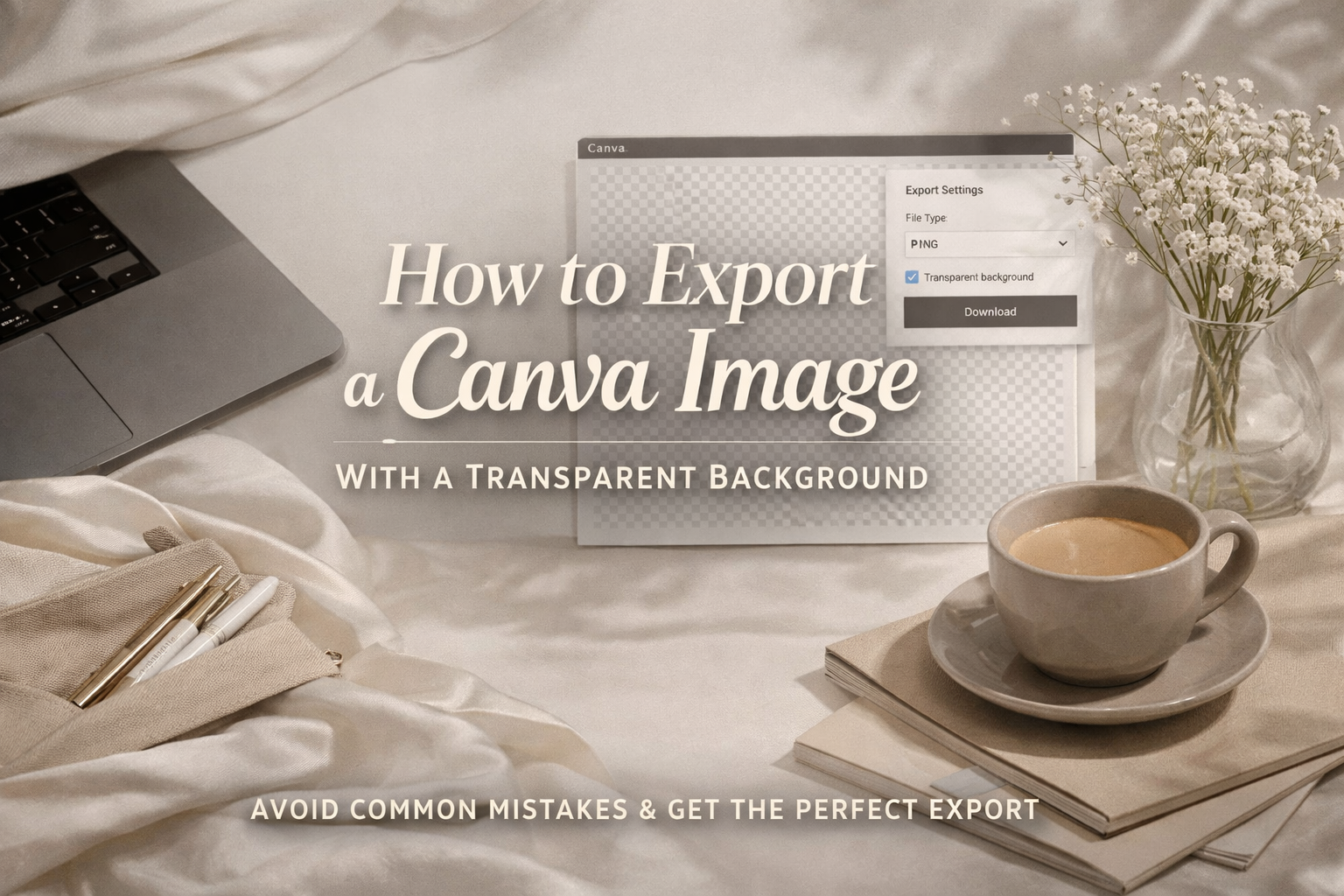
How to Export a Canva Image With a Transparent Background
You’ve designed the perfect graphic in Canva.
The colors are chef’s kiss. The font? Immaculate.
Then you upload it to your website, slide deck, or ad…and boom 💥
A chunky white box ruins the vibe.
If this has happened to you, welcome—you’re among friends. Today we’re breaking down exactly how to export a Canva image with a transparent background, why that pesky white box shows up, and how to make sure it never appears again.
Let’s get into it.
First: Why Does Canva Add a White Background?
Short answer: because you didn’t tell it not to.
Longer answer:
Canva defaults to exporting images with a background unless:
Your design actually has no background, and
You export it using the correct file type and settings.
Miss one checkbox, and Canva politely hands you a white rectangle you never asked for.
The Big Requirement (Don’t Skip This)
You need Canva Pro
Transparent backgrounds are a Pro feature.
If you’re on the free plan, Canva will always add a background—even if your design looks transparent inside the editor.
No Pro = no transparency. Simple, but important.
Step-by-Step: Exporting a Canva Image With a Transparent Background
Step 1: Make Sure Your Background Is Actually Transparent
Click the background of your design:
If you see a color applied, remove it
Or delete the background element entirely
You want the classic gray-and-white checkerboard look. That’s Canva’s way of saying, “Congrats, this is transparent.”
Step 2: Click Share → Download
Top right corner. You know the drill.
Step 3: Choose the Right File Type
This part matters more than people think.
Best options:
PNG → Best for logos, web graphics, and overlays
SVG → Best for logos you’ll scale (also Pro-only)
❌ JPG will never support transparency. Don’t do it.
Step 4: Check the “Transparent Background” Box
This is the step everyone misses.
Under your file settings:
Toggle Transparent background ✅
No toggle = white box strikes again.
Step 5: Download and Test It
Drop the image onto:
A website
A colored background
A slide deck
If it blends seamlessly with no white border? You nailed it.
Want to See It Done in Real Time?
Here’s a quick walkthrough video that shows the exact process, click by click:
Remove the White Background in Canva (Export with Transparency)
from Video School
If you’re more of a “show me, don’t tell me” learner, this covers it perfectly.
Common Mistakes (AKA Why the White Box Is Still There)
If transparency still isn’t working, check these:
❌ Exported as JPG instead of PNG or SVG
❌ Forgot to toggle Transparent background
❌ Background color is still applied to the canvas
❌ Using Canva Free
❌ Downloaded the wrong page in a multi-page design
One of these is almost always the culprit.
When Transparent Images Actually Matter (More Than You Think)
Transparent exports are essential for:
Logos on websites
Social ads
Email headers
Thumbnails
Product mockups
Slide decks that don’t look like 2012 PowerPoint
In other words: pretty much everything modern marketing touches.
Final Take
Transparent backgrounds aren’t a “nice to have.”
They’re a brand-polish necessity.
Once you know where Canva hides the toggle, exporting clean, professional graphics takes about five seconds—and saves you from endless design frustration.
Need Help Making Your Brand Look Less DIY and More “Dang, Who Did That?”
At Ritner Digital, we help brands turn tools like Canva into actual marketing assets—not just decent-looking graphics.
Whether you need:
Branded templates
Polished visuals
Better digital strategy
Or someone to just handle it all for you
👉🏼 Reach out to Ritner Digital and let’s make your visuals work as hard as your business does.
No white boxes. No guesswork. Just clean, effective design.
FAQs
Can you export a transparent background in Canva for free?
Short answer: nope.
Transparent backgrounds are a Canva Pro feature. If you’re on the free plan, Canva will automatically add a background (usually white) when you export—no matter how transparent your design looks in the editor.
What file type should I use for a transparent Canva image?
Use PNG for most situations.
PNG → Best for web graphics, logos, social media, and overlays
SVG → Best for scalable logos (also Pro-only)
JPG → ❌ Never supports transparency
If transparency matters, JPG is not your friend.
Why is my Canva image still exporting with a white box?
This usually comes down to one of four things:
You didn’t check Transparent background before downloading
The design still has a background color applied
You exported as a JPG
You’re on Canva Free
Fix any of those, and the white box disappears.
How do I know if my Canva background is actually transparent?
Look for the gray-and-white checkerboard behind your design in the Canva editor.
If you see a solid color instead, your background isn’t transparent yet.
Can I remove the background from photos in Canva?
Yes—but again, Canva Pro required.
Use the Background Remover tool to remove photo backgrounds, then export as a PNG with Transparent backgroundenabled.
Does Canva transparency work for logos?
Absolutely—and it should be standard practice.
Logos should almost always be exported with transparent backgrounds so they work across:
Websites
Slide decks
Email headers
Social posts
If your logo only works on white, it’s limiting your brand.
Why does my transparent image look fine in Canva but not on my website?
Most likely:
The image wasn’t exported with transparency enabled, or
The website background color is blending poorly with the design
Test your image on a dark or colored background—if you see a box, transparency didn’t export correctly.
What’s the best Canva export setting for web use?
For most websites:
File type: PNG
Size: 1x or 2x depending on usage
Transparent background: ✅ checked
This keeps quality high without slowing down your site.
Should I use Canva or a designer for brand assets?
Canva is great—but only when used correctly.
If your brand relies on:
Consistent visuals
Clean logos
Professional marketing assets
Having a designer or digital partner set things up the right way saves time and avoids messy fixes later.
Related Reads
〰️
Related Reads 〰️

How to Crop an Image Into a Circle (or Any Shape) in Canva
Cropping images into circles or custom shapes in Canva is easier than you think. This quick guide shows you how to use frames for clean, polished designs in minutes.

Does Your Image File Name Matter for SEO and AI Citations?
You optimize the title, the meta description, and the headers — then upload a featured image called IMG_4782.jpg. That file name is a missed opportunity. Here's why what you name your images matters for SEO, Google Image Search, and how AI systems decide which content to cite.

They Don’t Like Those AI Images
AI images are everywhere—but not everyone’s buying in. While some brands embrace sleek, generated visuals, others stick with old-school stock photos because they signal trust and authenticity. This post breaks down why visual preferences aren’t about trends—they’re about what your audience believes when they see your brand.