How to Set Up Google AdSense on Squarespace: The Complete Step-by-Step Guide (Including the ads.txt Fix)
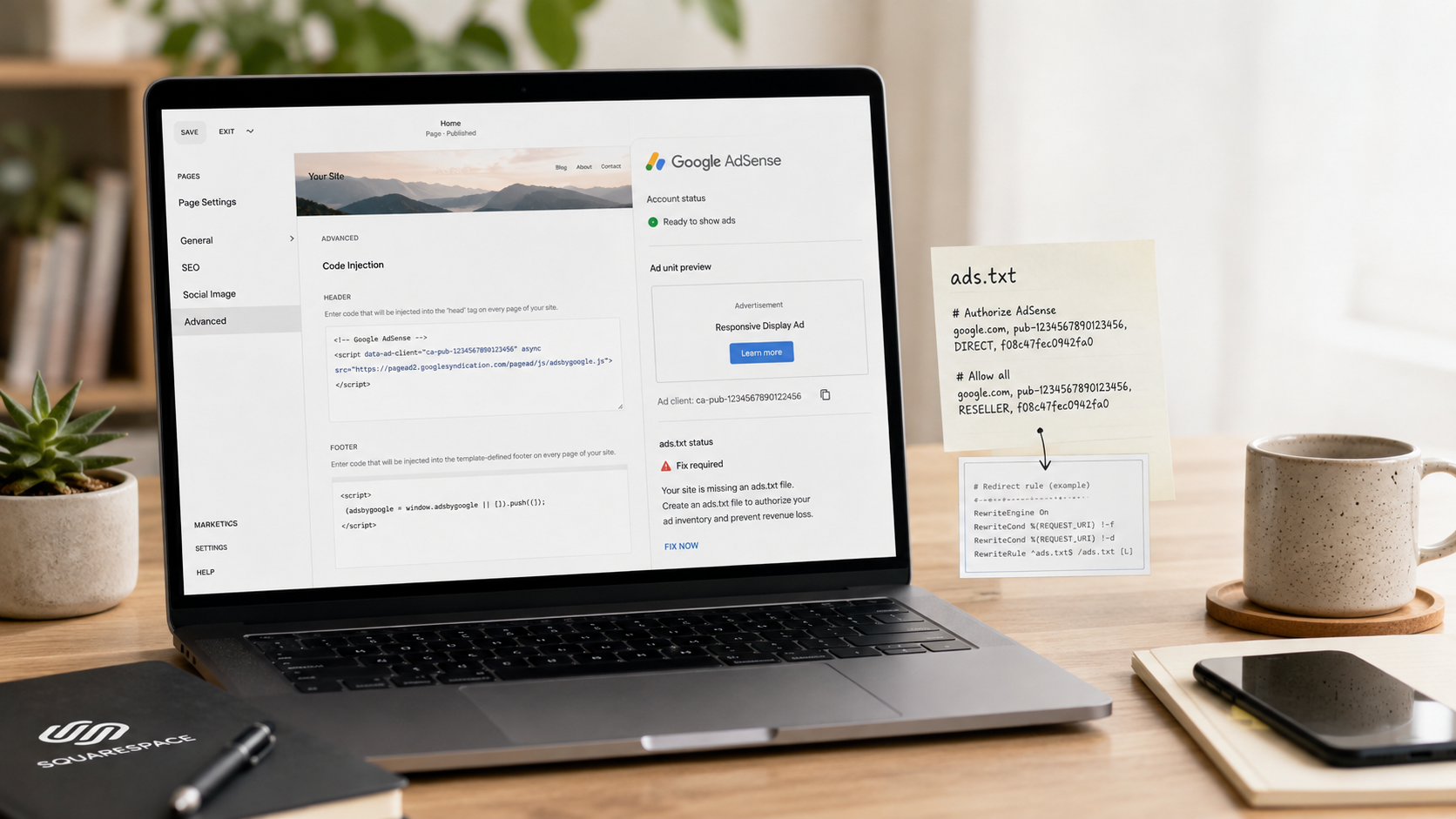
Here's the good news: yes, you can absolutely run Google AdSense on a Squarespace website. Squarespace has no native AdSense integration — there's no "connect AdSense" button the way there is for Google Analytics — but the setup works reliably through Squarespace's Code Injection feature, and thousands of Squarespace publishers run ads this way.
Here's the honest news: there's one step in the process — the ads.txt file — that Squarespace makes genuinely annoying, and it's the step that trips up almost everyone. Most guides either skip it or bury it. We're going to walk through it in full, because skipping it is how you end up with the dreaded "Earnings at risk" warning in your AdSense dashboard.
This guide covers everything in order: what you need before you start, connecting your site to AdSense, verifying it, placing ads (the right way), fixing the ads.txt issue with the URL-mapping workaround, and troubleshooting the problems that actually come up. Let's build it.
Before You Start: The Three Prerequisites
Don't touch any code until you've confirmed these three things, or you'll be backtracking.
1. You're on a Squarespace plan that allows custom code. Code Injection and Code Blocks — both required for this setup — are premium features. They're available on Squarespace's Business and Commerce plans, but not on the Personal plan. If you're on Personal, upgrading is step zero; there is no workaround.
2. You have (or will apply for) a Google AdSense account. If you don't have one yet, this same process doubles as your application — you'll add the site, place the verification code, and Google will review your site before approving ads. Remember that AdSense has no minimum traffic requirement, and you don't need an LLC or any business entity — an individual with original content qualifies. What Google does require is substance: original articles, clear navigation, and policy compliance.
3. Your site has the trust pages. A privacy policy that discloses advertising cookies and personalization is effectively required by Google's publisher policies. About and Contact pages strongly help approval. If your Squarespace site is missing these, build them first — it's twenty minutes of work that prevents weeks of rejection loops.
Got all three? Good. Total setup time from here: about 30–45 minutes of active work, plus Google's review period.
Step 1: Add Your Site in Google AdSense
Log in to your Google AdSense account and, from the left-hand menu, click Sites → Add site (or + New site). Enter your website's URL — use your primary custom domain (e.g., yoursite.com), not your built-in yoursite.squarespace.com address. AdSense needs to verify the domain visitors actually use, and running ads on a Squarespace subdomain isn't the goal anyway.
AdSense will then generate a verification code snippet — a few lines of JavaScript containing your unique publisher ID (it looks like pub- followed by a 16-digit number). Click Copy and keep this tab open; you'll come back to it.
Step 2: Paste the AdSense Code Into Squarespace's Code Injection
Now switch to Squarespace. In current versions of the interface, the path is:
Website → Pages → scroll down to Website Tools → Code Injection
(On some accounts it appears as Settings → Advanced → Code Injection — both routes lead to the same panel.)
Paste the AdSense verification snippet into the Header field, then click Save. The Header injection places the code inside the <head> tag of every page on your site, which is exactly where Google requires it — you do not need to add it page by page.
Two things worth knowing at this point:
This snippet does double duty. It verifies your ownership of the site for AdSense review, and it's also the base script that powers Auto ads later. It stays in your header permanently.
If you use other header scripts (analytics, pixels, fonts), the AdSense code can coexist with them — just paste it on its own lines. Don't nest it inside another script tag.
Step 3: Request Review and Wait for Verification
Return to your AdSense tab, check the box confirming you've placed the code, and click Request review (or Verify). Google will now crawl your site to confirm the code is present, then review the site itself against its program policies.
How long this takes varies wildly: some sites verify within 48 hours; others take up to a few weeks. During the wait, resist the urge to remove or move the code — Google checks for it repeatedly. This waiting period is also the perfect time to do Step 5 (the ads.txt fix), so the file is already in place the moment you're approved.
If you're rejected: Google will state a reason category (usually thin content or policy issues). Fix the actual problem, wait a few weeks, and reapply — rapid-fire resubmissions with no changes just extend the loop.
Step 4: Choose Your Ad Strategy — Auto Ads vs. Manual Ad Units
Once approved, you have a real decision to make, and the default is the wrong one for most Squarespace sites.
Auto ads is Google's set-and-forget mode: with the header code already in place, Google's algorithm automatically inserts ads wherever it predicts they'll perform. Zero extra work — and, on Squarespace, frequently ugly results. Auto ads don't respect your template's design logic, and Squarespace practitioners consistently recommend turning Auto ads off in favor of manual placements so ads don't appear in awkward spots that wreck your carefully designed layout.
Manual ad units give you control. Here's the workflow:
In AdSense, go to Ads → By ad unit → Display ads.
Name the unit something you'll recognize later (e.g., "Blog post — in-content" or "Blog sidebar").
Leave the size set to Responsive in most cases — it adapts to Squarespace's fluid layouts and mobile views. (If a responsive unit renders strangely in a narrow sidebar, switching that unit to a fixed square size is a common fix.)
Click Create, then copy the generated code snippet. You can retrieve any unit's code later via the < > icon next to it.
Then place it in Squarespace:
Edit the page or blog post where you want the ad.
Click + to add a block and choose Code.
Paste the ad unit snippet and click Apply.
Important: inside the Squarespace editor, the block will display "Script Disabled" or appear blank. This is normal — Squarespace disables scripts in edit mode, but the ad renders on your live site. Check the live page, not the editor. Also note that brand-new ad units can take from a few minutes to an hour or so to begin serving ads, so an empty space immediately after setup isn't a malfunction.
A sane starting layout for a blog-based Squarespace site: one in-content unit placed after the opening section of posts, and one unit near the end of posts or in a sidebar/footer area. Start minimal — you can always add units, but a page carpeted in ads hurts user experience, page speed, and your standing with both readers and Google.
Step 5: Fix the ads.txt Problem (The Step Everyone Gets Stuck On)
Soon after approval — sometimes within days — many Squarespace publishers see an alarming red banner in AdSense:
"Earnings at risk — You need to fix some ads.txt file issues to avoid severe impact to your revenue."
Here's what's happening. Ads.txt is a fraud-prevention standard: a plain text file listing which ad networks are authorized to sell your inventory. Google wants it served from your site's root directory — yoursite.com/ads.txt. The problem: Squarespace doesn't give you access to your root directory, so you can't simply upload the file where Google expects it. Ads.txt is technically optional, but going without it can suppress advertiser bidding on your inventory — which means lower earnings — so it's worth fixing properly.
The community-standard workaround uses Squarespace's file upload plus a 301 URL redirect. It sounds hacky. It is hacky. It also works. Here's the full procedure:
5a. Create your ads.txt file. In AdSense, the "Fix now" link on the warning will offer a download of a pre-built file for your account. Or create it yourself: open any plain-text editor and paste this single line, replacing the x's with your actual publisher ID:
google.com, pub-xxxxxxxxxxxxxxxx, DIRECT, f08c47fec0942fa0Save it as ads.txt. (That final string is Google's standard certification authority ID — it's the same for all AdSense publishers, so don't change it.)
5b. Upload the file to Squarespace. Squarespace has no file manager, so the upload happens through a link: edit any page (a hidden, unlinked page works fine), add a Text block, type "ads.txt," highlight the text, click the link icon → gear icon → File, and upload your ads.txt file. Save the page.
5c. Copy the file's real URL. Visit the live page, right-click your "ads.txt" link, and copy the link address. It will be either a short path like https://yoursite.com/s/ads.txt or a long Squarespace CDN address beginning with https://static1.squarespace.com/.... Paste it somewhere safe.
5d. Create the URL mapping. Go to Settings → Developer Tools → URL Mappings (on some accounts: Settings → Advanced → URL Mappings) and add this line, using the URL you copied:
/ads.txt -> /s/ads.txt 301If your copied link was the long CDN address instead, map to that full URL — the format is identical: /ads.txt -> https://static1.squarespace.com/static/.../ads.txt 301. Save.
5e. Verify it works. Open a browser and go to yoursite.com/ads.txt. If your browser displays or downloads the one-line file, the redirect is live. Back in AdSense, open your site under Sites and click Check for updates to prompt a re-crawl. The warning can take 24 hours or more to clear even after a correct setup, so verify the redirect yourself and then be patient.
One maintenance note: do not delete the uploaded file, even if you delete the visible link to it — the file must stay hosted. And Squarespace publishers occasionally report the redirect breaking after site changes, requiring the mapping to be re-checked or re-created. If the "Earnings at risk" banner ever reappears months later, test yoursite.com/ads.txt first — nine times out of ten, that's what broke.
Step 6: Watch the Two Numbers That Matter
With ads live and ads.txt verified, your dashboard work is mostly done. Two ongoing checks are worth building into your routine:
Page speed. Ad scripts are heavy, and Squarespace sites aren't the fastest to begin with. Test a few ad-bearing pages in PageSpeed Insights after setup. If scores cratered, reduce the number of units per page — Core Web Vitals affect your search rankings, and trading organic visibility for ad pennies is a losing swap.
Revenue versus traffic. AdSense earnings are a function of sessions — typically a few dollars per thousand pageviews. If your dashboard is showing coffee money, the constraint isn't your ad placement; it's your traffic. That's not a setup problem, it's a visibility problem, and it's the one worth solving, because every monetization upgrade — better RPMs, premium ad networks, sponsorships — is unlocked by audience growth, not dashboard tinkering.
And one honest caveat we'd be negligent to skip: if your Squarespace site is a business site — a portfolio, a service business, a practice — think hard before doing any of this. As we've covered elsewhere on this blog, a visitor to a business site is worth vastly more as a potential customer than as an ad impression, and display ads on a professional site send your hard-won visitors to other companies while slowing your pages down. This guide is for content sites, where the content is the product. For business sites, the better play is a website built to convert.
Frequently Asked Questions
Can you use Google AdSense on Squarespace?
Yes. Squarespace has no built-in AdSense integration, but AdSense works fully through Squarespace's Code Injection feature (for the site-wide verification/Auto ads script) and Code Blocks (for manually placed ad units). You'll need a Squarespace Business or Commerce plan, since the Personal plan doesn't include custom code features. The only genuinely awkward part is the ads.txt file, which requires a file-upload-plus-301-redirect workaround because Squarespace doesn't provide root directory access.
Where do I paste the AdSense code in Squarespace?
The site verification snippet goes in Website → Pages → Website Tools → Code Injection, pasted into the Header field — this places it in the <head> of every page, which is what Google requires. Individual ad units go into Code Blocksadded directly to pages or blog posts where you want each ad to appear. Note that Code Blocks display "Script Disabled" inside the Squarespace editor; the ads render normally on your live site.
Why do my AdSense ads not show on my Squarespace site?
Work through the usual suspects in order: your site hasn't finished AdSense review yet (verification can take days to weeks); the ad unit was just created (new units can take up to an hour to serve); you're looking at the editor instead of the live site (scripts are disabled in edit mode); an ad blocker is running in your browser; or your ads.txt file is missing or unreachable, which can suppress ad serving. If ads previously worked and stopped, test yoursite.com/ads.txt — a broken URL mapping is the most common silent failure on Squarespace.
How do I add an ads.txt file to Squarespace?
Squarespace doesn't allow root-directory uploads, so you use a redirect workaround: create a plain-text file named ads.txt containing your AdSense line (google.com, pub-YOURID, DIRECT, f08c47fec0942fa0), upload it to any page via a text link's file-upload option, copy the uploaded file's URL, then add a URL mapping under Settings → Developer Tools → URL Mappings: /ads.txt -> /s/ads.txt 301 (or mapped to the full CDN URL if that's what Squarespace generated). Verify by visiting yoursite.com/ads.txt, then click "Check for updates" on your site in AdSense. Allow up to 24+ hours for the warning to clear.
Should I use Auto ads or manual ad units on Squarespace?
Manual ad units, for most sites. Auto ads require zero effort but place ads algorithmically, without regard for your template's design — and on Squarespace that regularly produces awkward, layout-breaking placements. Manual units placed via Code Blocks let you control exactly where ads appear (in-content, end-of-post, sidebar) so they coexist with your design instead of fighting it. Set units to Responsive sizing by default, and switch to fixed sizes only where a responsive unit renders poorly, such as narrow sidebars.
Which Squarespace plan do I need for AdSense?
Business plan or higher. Both features AdSense depends on — Code Injection for the site-wide script and Code Blocks for ad placements — are premium features excluded from the Personal plan. If you're on Personal, upgrading is a prerequisite; there's no supported workaround for adding scripts on that tier. Worth noting when running the numbers: the plan upgrade has a real monthly cost, so at typical AdSense rates you'll want meaningful traffic before ads alone justify it.
Does putting AdSense on Squarespace hurt SEO?
Ads themselves don't directly penalize rankings, but their side effects can. Ad scripts add page weight and can degrade Core Web Vitals — a real ranking factor — and excessive ad density above the fold creates the kind of poor page experience Google's systems demote. Keep units minimal, test key pages in PageSpeed Insights after setup, and prioritize content quality. The bigger strategic risk isn't algorithmic: it's cluttering a site whose visitors would be worth far more as customers or subscribers than as impressions.
The Setup Is a Saturday Morning. The Traffic Is the Business.
Here's the recap of the whole build: confirm you're on a Business+ plan, add your site in AdSense, paste the verification code into Code Injection's Header field, request review, create manual ad units and place them with Code Blocks, then run the ads.txt upload-and-redirect workaround so the "Earnings at risk" warning never darkens your dashboard. Verify yoursite.com/ads.txt loads, keep an eye on page speed, and you're a live publisher.
But we'd be doing you a disservice if we let the plumbing overshadow the pipeline. AdSense on Squarespace pays in proportion to one thing: how many people find your site. The publishers earning real money from this exact setup aren't better at pasting code — they're better at getting found, in Google, in Maps, and increasingly in AI-generated answers. The setup takes a morning. The visibility takes a strategy.
That's the part we build. Ritner Digital designs Squarespace websites engineered to perform and runs the SEO, content, and AI search visibility programs that turn a site with ad code into a site with an audience — whether you're a publisher growing toward premium ad-network traffic tiers or a business whose Squarespace site should be booking customers instead of serving banners.
👉🏼 Get your free Squarespace visibility audit →
We'll look at your setup, your speed, and your search presence — and tell you honestly whether ads, traffic, or conversions should be your next move.
Sources: Squarespace Help Center (Code Injection, premium features, URL mappings), Google AdSense Help Center (site verification, ads.txt declarations, publisher policies), Christy Price's Squarespace AdSense guide, Tiffany Davidson Squarespace tutorials, Dozro Squarespace resources, Phased Design ads.txt walkthrough.