Where Do You Actually Set Up the AdSense Cookie Consent Banner? A For-Dummies Walkthrough (Squarespace Edition)
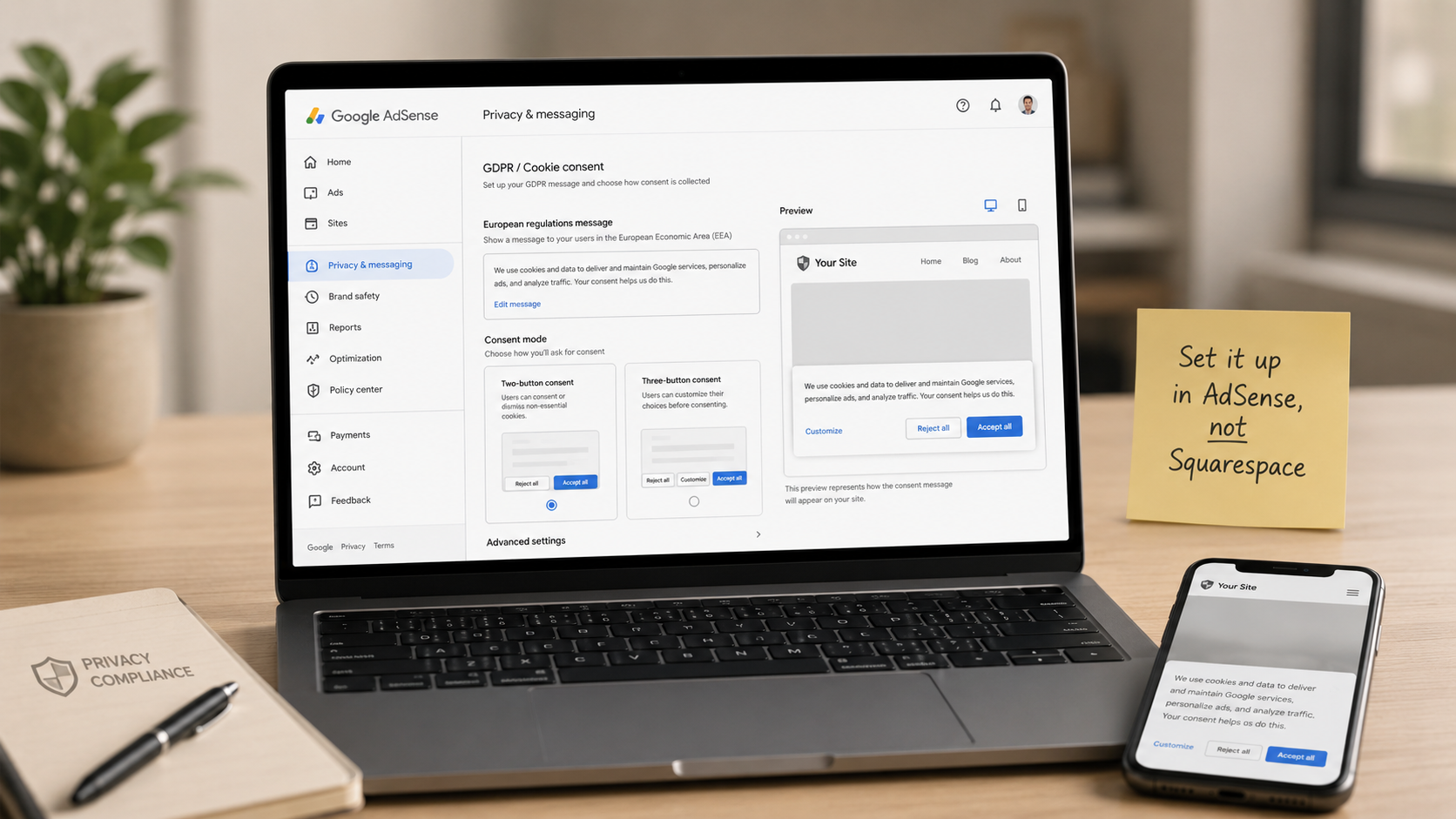
Let's answer the question in the title before anything else, because it's the thing everyone gets stuck on:
The cookie consent banner is NOT set up in Squarespace. It's set up inside your Google AdSense account, in a section of the left-hand menu called "Privacy & messaging." You will not paste any new code into Squarespace. You will not install a plugin (Squarespace doesn't have plugins anyway). You will click about six things inside AdSense, and the banner will appear on your live site automatically — delivered through the AdSense code you already put in your site header.
That's the whole magic trick, and it's why so many tutorials overcomplicate this: the banner rides along on the AdSense script that's already on your site. Google's own consent messages are served through your existing AdSense tag, so if your ads work, the plumbing for the banner already exists. You're just flipping it on.
This is the hands-on companion to our post on whether AdSense requires cookies and consent (short version: yes — since January 2024, Google requires a certified consent banner for any traffic from the EU, UK, or Switzerland, and without one that traffic earns bottom-tier rates or nothing). That post covered the why. This one is purely the where and how: every click, in order, with plain-English explanations of what each setting means, plus the Squarespace-specific quirks — including what to do about Squarespace's own built-in cookie banner so your visitors don't get double-bannered.
Total time: about 20–30 minutes. Cost: $0 — Google's built-in banner is a certified CMP that fully satisfies the requirement. Let's go.
Before You Start: The Two-Item Checklist
This walkthrough assumes two things are already true. If they're not, do them first:
1. Your site is added and approved (or under review) in AdSense. The Privacy & messaging tool attaches messages to sites listed in your AdSense account, so your Squarespace site needs to exist there.
2. The AdSense code is in your Squarespace header. This is the verification snippet you pasted into Website → Pages → Website Tools → Code Injection → Header during setup. The consent banner is delivered through that exact script — Google notes messages can't display if the site tag isn't in place — so it must be live. If you haven't done this yet, follow our full Squarespace AdSense setup guide first, then come back.
If both boxes are checked, you never need to touch Squarespace again for the rest of this tutorial. Everything from here happens at adsense.google.com.
Step 1: Find "Privacy & Messaging" (The Part of AdSense Nobody Notices)
Sign in to your AdSense account. Look at the left-hand sidebar menu — the same one where you find Ads, Sites, and Payments. A few items down, you'll see:
🔒 Privacy & messaging
Click it. This is Google's built-in hub for all consent and privacy messages — the GDPR banner, the US state privacy message, and a few other message types all live here. Most publishers scroll past this menu item for months without ever opening it, which is exactly why the "where do I even go?" confusion exists.
When the page loads, you'll see cards for the different message types. The one you want is called European regulations(older tutorials and some interfaces call it the GDPR card — same thing).
Step 2: Create Your European Regulations (GDPR) Message
On the European regulations card, click Create if this is your first message — or Manage → Create message if one exists already. Google now walks you through a short setup wizard. Here's each screen in plain English:
Select your site(s). Click Select sites and check your Squarespace site's domain. If you run multiple sites in one AdSense account, you can attach the same message to all of them.
Choose the consent choices visitors will see. This is the only decision that requires actual thought. The banner can show visitors two or three buttons:
Consent — the visitor accepts personalized ads. This is the button you want them to click, because personalized ads are what pay full rates.
Manage options — opens a detailed panel where visitors can toggle specific purposes and ad partners. Required — this granular control is what makes the banner legally valid consent rather than decoration.
Do not consent (optional third button) — lets visitors refuse in one click. Including it is the more privacy-forward configuration; omitting it means visitors who want to refuse must go through Manage options. Either configuration is permitted — choose based on how user-friendly versus revenue-protective you want to be.
Review your ad partners. The wizard asks which ad tech companies your consent covers. Unless you have a specific reason not to, choose "Automatically include commonly used ad partners" — Google pre-selects the standard list that actually serves your ads and keeps it updated as the list changes. Hand-picking vendors is an advanced game you don't need to play.
Name the message. Something like "Squarespace GDPR banner" — the name is internal only; visitors never see it.
Style it (optional). You can adjust colors, logo, and language so the banner doesn't clash with your site design. If your site serves multiple languages, review the message text in each before publishing. Don't overthink this screen — a clean default banner beats a beautiful unpublished one.
Step 3: Click Publish. That's Genuinely It.
When the settings look right, click Publish. You can also save a draft if you're not ready, but drafts protect no one — the banner only starts collecting consent once it's live.
No code appears for you to copy. No Squarespace step follows. The published message begins serving through your existing AdSense header tag, and Google handles the geography automatically: the banner shows only to visitors in the EEA, UK, and Switzerland. Your visitors in New Jersey, Texas, and Toronto will never see it.
Which leads directly to the question everyone asks next...
"I Published It and I Can't See the Banner on My Site!" — How to Actually Test It
You can't see it because you're not in Europe. The banner is geo-targeted by design. To verify it's working:
The proper test: use a VPN, set your location to an EU country (Ireland, Germany, France — any EEA member), open your site in a private/incognito browser window, and load a page. The consent message should appear, with your configured Consent and Manage options choices. Incognito matters because a previously saved consent choice will suppress the banner on repeat visits — that's it working correctly, not failing.
The lazy test: ask a friend or client contact in the UK or EU to load your site and screenshot what they see.
If the banner doesn't appear even from an EU location, run through these in order: (1) confirm the AdSense header code is actually live on the page — view your site's source and search for "adsbygoogle"; (2) confirm the message status shows Published, not Draft, in Privacy & messaging; (3) give it time — newly published messages can take a little while to propagate; (4) an edge case worth knowing exists: Google notes messages may not display if a site's referrer policy blocks cross-origin sharing — this is rarely an issue on standard Squarespace sites, but it's the documented gotcha if all else fails.
Step 4 (While You're in the Menu): Turn On the US States Message Too
You're already standing in the right room, so flip the other important switch. On the same Privacy & messaging page you'll find a US states regulations card. This one handles the growing patchwork of American state privacy laws — California's CCPA/CPRA and the dozen-plus states that followed — which give residents the right to opt out of the "sale" or "sharing" of personal info, a definition that can sweep in ad cookies.
The setup wizard works just like the GDPR one: create, select your site, publish. The message presents US visitors in covered states with the required opt-out mechanism and connects to Google's restricted data processing behind the scenes. It's a five-minute add-on that closes your domestic compliance gap while the European one is fresh in your mind.
The Squarespace Wrinkle: What About the Built-In Cookie Banner?
Here's the part that's genuinely specific to Squarespace, and the source of real confusion.
Squarespace includes its own simple cookie banner feature (found in your site's settings under the cookies/visitor data options). Two things to understand about it:
It does not satisfy the AdSense requirement. Squarespace's native banner is a general-purpose notice — it can tell visitors cookies exist, but it is not a Google-certified CMP, doesn't integrate with the IAB Transparency and Consent Framework, and doesn't generate the standardized consent signals Google's ad systems require. Publishers who assume "I turned on the Squarespace cookie banner, so I'm covered" are the exact audience the Earnings at risk and compliance warnings are written for. The certified banner from Privacy & messaging is the one that counts for ads.
Running both can double-banner your European visitors. If Squarespace's banner is enabled and your new AdSense consent message is live, EEA visitors may see two overlapping cookie prompts — a clunky experience. The common-sense fix: since the Google CMP now handles ad-consent duties, either disable Squarespace's banner or keep it in its simplest, least intrusive configuration to cover Squarespace's own analytics cookies, and let Google's banner do the heavy lifting. Test from an EU location (VPN again) after adjusting so you can see exactly what a European visitor experiences.
What Your Visitors Will Actually See (Set Your Expectations)
Once live, a first-time European visitor gets the consent dialog before ads load: an explanation that your site and its ad partners use data for personalized advertising, plus your configured buttons. Their choice is remembered, so they see the banner once, not every visit.
And no — not everyone clicks Consent. Real-world publisher reports put consent rates all over the map; one Squarespace-focused publisher reported roughly 45% of users consenting when shown the message. Visitors who decline get limited or no ads, per the rules we covered in the cookies-and-consent post. That might sting, but reframe it: before the banner, 100% of that European traffic was earning at the discounted Limited Ads tier or violating policy. The banner doesn't cost you consenting visitors — it's the mechanism that lets you legally earn full rates from every visitor who says yes. Compliance here is strictly revenue-positive.
One more expectation to set: this isn't a set-and-forget-forever item. Google evolves the consent framework over time (the underlying TCF spec versions forward periodically), and because you're using Google's own CMP, those updates happen automatically on Google's side — the strongest argument for the built-in option over anything homemade. Your only job is an occasional glance at Privacy & messaging for any yellow warning flags.
Frequently Asked Questions
Where do I set up the cookie consent banner for AdSense?
Inside your Google AdSense account — not on your website platform. Sign in at adsense.google.com, click Privacy & messaging in the left sidebar, open the European regulations card, click Create, select your site, configure the consent choices, and publish. The banner then serves automatically through the AdSense code already in your site's header. There is no separate code to install, no plugin, and nothing to add in Squarespace, WordPress, or any other platform beyond the AdSense tag you placed during initial setup.
Do I need to add any code to Squarespace for the consent banner?
No. The consent message is delivered through the same AdSense script you pasted into Code Injection's Header field when you first set up ads. As long as that code is live site-wide, publishing a message in Privacy & messaging is the entire job — Google handles displaying the banner, recording choices, and passing consent signals to the ad systems. This is the single most misunderstood part of the process: people go hunting for a Squarespace-side setting that doesn't exist. The switch lives in AdSense.
Why can't I see the cookie banner on my own website?
Because you're (probably) not in Europe. Google geo-targets the European regulations message to visitors in the EEA, UK, and Switzerland only — visitors elsewhere never see it, by design. To verify it works, connect through a VPN set to an EU country and load your site in an incognito window (incognito matters, because a previously saved consent choice suppresses the banner on return visits). If it still doesn't appear from an EU location, confirm the message status is Published, confirm the AdSense header code is live in your page source, and allow some propagation time.
Is Google's free consent banner actually compliant, or do I need a paid tool?
Google's built-in banner is fully compliant with Google's own requirement — the European regulations messages in Privacy & messaging are certified CMPs integrated with the IAB Transparency and Consent Framework, which is precisely what the January 2024 mandate demands. Paid CMPs (CookieYes, Cookiebot, iubenda, and other certified partners) are equally valid and add value when you need unified consent across analytics and multiple ad vendors, deeper design control, or multi-site management — but for a typical Squarespace publisher running AdSense, the free built-in option satisfies the requirement completely.
Does Squarespace's built-in cookie banner count as a certified CMP?
No. Squarespace's native cookie banner is a general notice feature — it isn't Google-certified, doesn't integrate with the IAB TCF, and doesn't produce the consent signals AdSense requires. It cannot substitute for the Privacy & messaging banner. If both are enabled, European visitors may see two stacked cookie prompts; most publishers resolve this by letting Google's certified banner handle ad consent and disabling or minimizing Squarespace's banner. Whatever configuration you choose, test it from an EU location so you see the actual visitor experience.
What consent options should I choose — two buttons or three?
Google's message supports Consent and Manage options, with an optional third Do not consent button. The two-button setup (Consent / Manage options) is the more revenue-protective choice, since refusing requires an extra step through the options panel. The three-button setup is the more privacy-friendly, frictionless choice. Both configurations are permitted under the framework. Whichever you pick, "Manage options" must remain — the granular purpose-level control is what makes the collected consent legally meaningful — and let Google auto-include the commonly used ad partners list rather than hand-curating vendors.
What happens to visitors who click "Do not consent"?
They browse your site normally, but ad serving to them collapses: without cookie consent, Google can serve only severely limited ads or none at all to those visitors, since even non-personalized ads rely on cookies covered by European privacy rules. Their choice is stored so they aren't re-prompted every visit. Expect a meaningful minority to decline — publisher-reported consent rates vary widely, with figures around half being common. The banner still leaves you strictly better off: it converts European traffic from universally non-compliant, bottom-tier serving into full-rate personalized ads for everyone who consents.
The Bottom Line: Six Clicks in a Menu You've Never Opened
Here's the entire journey, compressed: adsense.google.com → Privacy & messaging → European regulations → Create → select your site, pick your buttons, auto-include ad partners → Publish. Then the US states message from the same page, a VPN test to see it live, and a decision about Squarespace's own banner so nobody gets prompted twice. No code, no cost, no Squarespace settings — the banner you were hunting for lives in a sidebar menu item most publishers have never clicked.
And with that, your AdSense setup is genuinely complete: approved and placed, ads.txt verified, consent banner live, compliant on both sides of the Atlantic. Which brings back the refrain from this whole series: the plumbing is done, and the plumbing was never the hard part. What your dashboard pays out now depends on the thing no menu setting controls — how many people find your site.
That's the part we build. Ritner Digital runs the SEO, content, and AI search visibility programs that grow the audience behind the ad revenue — and builds Squarespace sites engineered to perform, whether the goal is a publisher site scaling toward premium ad tiers or a business site where every visitor is worth far more than an impression.
👉🏼 Get your free Squarespace visibility audit →
We'll verify your compliance setup is airtight — and show you where the traffic that actually pays for it will come from.
Sources: Google AdSense Help Center (Privacy & messaging overview, creating European regulations messages, managing GDPR ad partners, certified CMP requirements, EU User Consent Policy), WebNots GDPR setup tutorial, Dozro consent message guide. This article is general information, not legal advice — consult a qualified attorney for compliance decisions.