How to Add Administrators to Your Google Business Profile
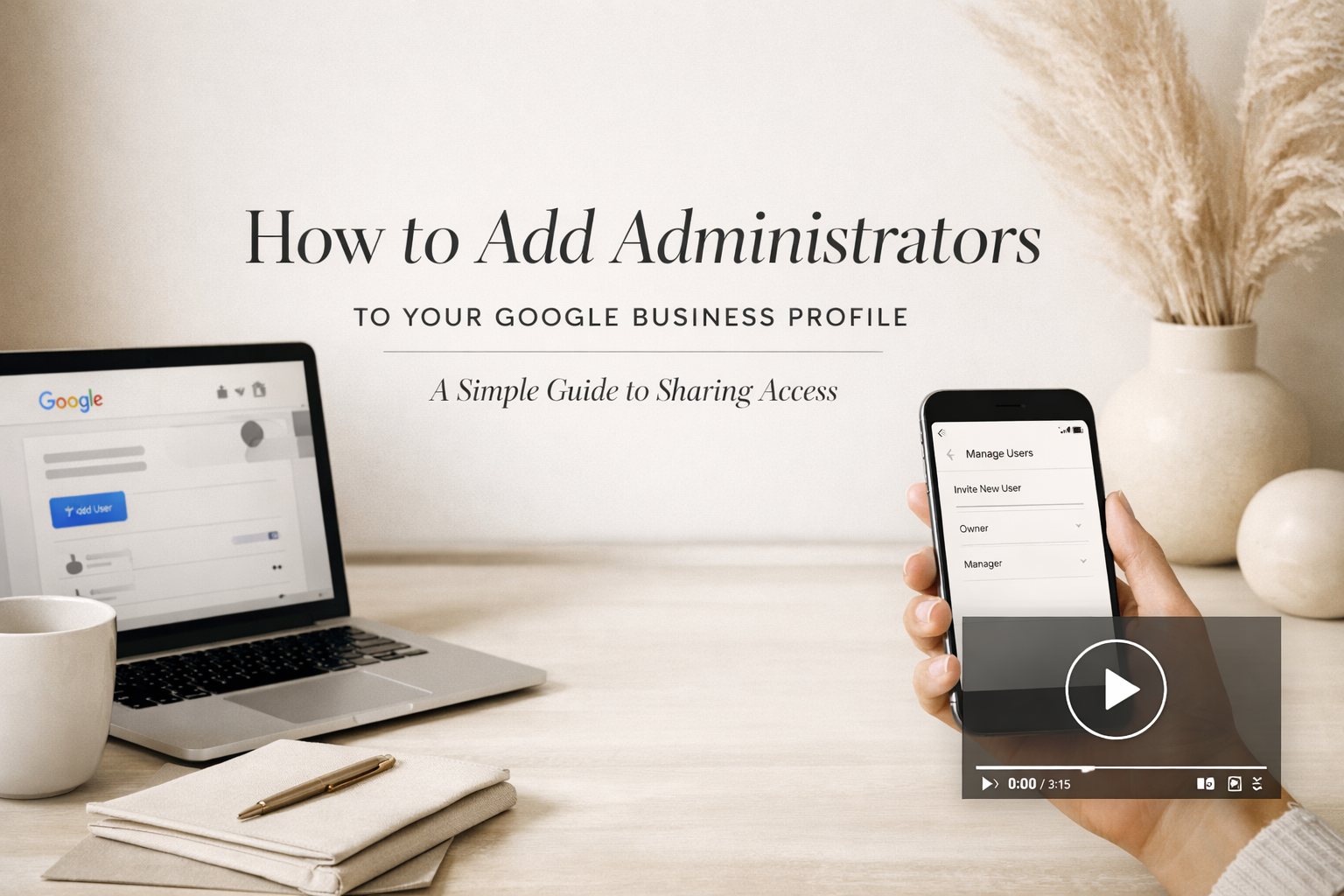
One of the very first things we do when onboarding a new client at Ritner Digital is get access to your Google systems—Analytics, Ads, Search Console… and yes, Google Business Profile.
This last one? Surprisingly tricky.
Not because it’s hard—but because Google decided to hide the button like it’s a secret level in a video game. So if you’ve ever found yourself clicking around thinking, “I know this exists… but where?”—you’re not alone.
Let’s fix that.
Why Adding Admins to Google Business Profile Matters
Your Google Business Profile (formerly Google My Business) controls how your business shows up on Google Search and Maps. Reviews, photos, hours, posts—it all lives here.
Which means:
If the wrong person has access → problems
If no one has access → bigger problems
If your marketing partner doesn’t have access → we’re flying blind
That’s why this is one of the first boxes we check when working with new clients.
How to Add an Administrator (Step-by-Step)
Here’s the quickest way to do it without yelling at your screen:
Log in to the Google account that owns your Business Profile
Go to Google Business Profile Manager
Select the business you want to manage
Click the three dots (⋮) → Business Profile settings
Choose People & access
Click Add
Enter the email address of the person you want to add
Select their role:
Manager – can edit info, post updates, respond to reviews
Owner – full control (use sparingly)
Hit Invite
Done. Google will send them an email to accept, and you’re officially ahead of 90% of business owners.
Pro Tip: Manager vs. Owner
If you’re working with an agency or contractor, Manager access is usually the move. It gives enough control to do the job—without handing over the keys to the kingdom.
Prefer a Visual Walkthrough?
We’ve got you covered. This video walks through the process step-by-step and shows exactly where Google hides the settings👇🏼
Video: Google Business Profile: How to Easily Add/Remove Managers and Owners
By: Torie Mathis | Digital Marketing
Still Stuck? That’s Normal.
Google changes interfaces constantly, and access issues are one of the most common speed bumps we see with new clients.
If you’re not sure who owns your profile, can’t find the settings, or inherited a listing from someone who’s long gone—this is exactly the kind of thing we help untangle.
📩 Reach out to Ritner Digital, and we’ll make sure your Google Business Profile is set up the right way—without the scavenger hunt.
Frequently Asked Questions
Who can add administrators to a Google Business Profile?
Only Owners can add or remove users. If you’re a Manager and don’t see the option, that’s not a bug—that’s Google doing Google things.
What’s the difference between an Owner and a Manager?
Short version:
Owner = full control (users, settings, ownership transfers)
Manager = can edit business info, post updates, respond to reviews
For agencies and marketing partners, Manager access is usually enough—and safer.
How long does it take for someone to get access?
Once you send the invite, the new user just needs to accept it via email. Access is typically granted immediately after acceptance (no waiting period, no drama).
I don’t know who owns my Google Business Profile—now what?
This happens a lot. Former employees, old agencies, or forgotten Gmail accounts are usually the culprit.
Good news: Google has a recovery process—but it can take time. If this sounds like you, it’s best to start sooner rather than later.
Can I add multiple administrators?
Yes. You can add multiple Managers and Owners to a single Business Profile. Just don’t go overboard—fewer cooks, better kitchen.
Can I remove someone later?
Absolutely. Owners can remove users at any time through the People & access settings. Clean access = fewer headaches.
Why is Ritner Digital asking for access right away?
Because your Google Business Profile impacts:
Local SEO
Reviews
Maps visibility
First impressions
Getting access early lets us audit, optimize, and protect your listing before small issues turn into big ones.
Still stuck?
You’re not alone—and you don’t have to brute-force it. Access issues are one of the most common problems we solve for new clients.
👉🏼 If Google’s making this harder than it needs to be, Ritner Digital can help.
Related Reads
〰️
Related Reads 〰️

Google Business Profile Optimization for Philadelphia Businesses: A Complete Guide
For most Philadelphia small businesses, the Google Business Profile is doing more work than the website — and getting less attention. A complete, well-optimized GBP is the difference between showing up in the local pack and being invisible when someone searches for what you do in your neighborhood. Here's a complete guide to getting it right, with strategies tuned to Philadelphia's unique neighborhood market.

You Have 400 Reviews. They Have 50. They're Still Outranking You.
There's a special kind of frustration that hits when you Google your own company, your trade, and your town — and you're not at the top. You've got hundreds of reviews. The competitor above you has a fraction of that. So what gives? It comes down to how Google actually ranks local businesses, and review count alone isn't enough to win.
How to Delete a Google Analytics Account (Without Nuking the Wrong Thing)
Cleaning up Google Analytics doesn’t have to be stressful. Whether you’re switching domains, starting fresh in GA4, or removing outdated data, this guide walks you through how to delete a Google Analytics account safely—and what to consider before you do.